Support us .Net Basics C# SQL ASP.NET Aarvi MVC Slides C# Programs Subscribe Download

Sql vs tsql vs plsql

In this video we will understand the difference between SQL, T-SQL and PL/SQL.

SQL stands for Structured Query Language. So, SQL is a language, specifically, it's a language for relational Databases.

what is sql

What is a relational database and why do we use it

what is relational database

In simple terms a relational database is a collection of tables to store data. The tables are usually related to each other by primary and foreign key constraints
, hence the term Relational Database Management System, in short RDBMS.

For example, let's say we want to store our organisation Employees data. We create a database (EmployeesDB - I named it EmployeesDB, but you can give it any meaningful name you want) and in this database we create 3 tables.

  • Departments - To store the list of all departments
  • Gender - To store different genders (Male and Female for example)
  • Employees - To store the list of all employees

To create the database itself, tables, relationships and to insert, update, delete and even select data we use SQL - Structured Query Language. So, in simple terms, SQL is a database language, we use it on a Database to create database objects like tables, views, functions etc. We also use it to insert, update, delete and select data.

What is T-SQL and PL/SQL and how is it different SQL

Well you can think of SQL as a standard database language. It was initially developed by IBM and later ANSI (American National Standards Institute) made it a standard. So, SQL is an ANSI standard and based on it different database vendors like Microsoft, Oracle and many other organisations developed their own database query language.

what is sql with example

Standards are always good, because they allow us to write similar queries across different relational database management systems. Different vendors like Microsoft and Oracle for example, support most of the features of the ANSI SQL standard, however, these database vendors also include their own non-standard features that extend the standard SQL language.

So the database that is developed by Microsoft is called Microsoft SQL Server or MS SQL Server for short. The language that Microsoft developed to query SQL Server database is called Transact-SQL or T-SQL for short.

sql vs transact sql

Similarly Oracle corporation developed a database management system called Oracle and the language that we use to query oracle database is PL/SQL. By the way, PL stands for Procedural Language.

So, you can think of SQL as a subset of T-SQL and PL/SQL. A word of caution here, both T-SQL and PL/SQL does not implement 100% of the feature set of standard SQL, but majority of the standard features are implemented. You can see that from the diagram below. Although, not entirely true, you can still think SQL is almost a subset of T-SQL and PL/SQL. This means if you know T-SQL or PL/SQL, then you already know the standard SQL.

Sql vs tsql vs plsql

The standard SQL is same across all database vendors. This means if you know the standard SQL, then you know how to do most of the basic things on most of the database management systems like SQL Server, Oracle, MySQL, PostgreSQL etc. If you ware wondering what is MySQL and PostgreSQL, well, just like SQL Server and Oracle, they are also relational database management systems.

what is t-sql

Summary

  • SQL is the standard database language
  • Based on this standard SQL, database vendors like Microsoft, Oracle and many other organizations developed their own database query languages
  • TSQL is a proprietary procedural language for working with Microsoft SQL Server database
  • Similarly, PL/SQL is a proprietary procedural language for working with Oracle database
  • T-SQL and PL/SQL are an extension to standard SQL. 
  • This means they have more features and functions than the standard SQL. 
  • For example, features such as local variables are added. Similarly many, many built-in functions are added for processing strings, numbers, dates and other types of data.
  • They also added the capability to write stored procedures.

In short these procedural languages like T-SQL and PL/SQL for example, helps us in writing queries easier, quicker and more efficiently.

If you want to learn SQL and T-SQL, please check out our SQL Server tutorial for beginners course. We have covered everything you need, from the basics to advanced SQL concepts.

SQL Scripts

Create Database EmployeesDB
Go

Use EmployeesDB
Go 

Create table Departments
(
       Id int primary key identity,
       [Name] nvarchar(50)
)
Go 

Create table Gender
(
       Id int primary key identity,
       Gender nvarchar(20)
)
Go 

Create table Employees
(
       Id int primary key identity,
       [Name] nvarchar(50),
       DeptId int foreign key references Departments(Id),
       GenderId int foreign key references Gender(Id)
)
Go 

Insert into Departments values ('IT')
Insert into Departments values ('HR')
Go 

Insert into Gender values ('Male')
Insert into Gender values ('Female')
Go 

Insert into Employees ([Name], DeptId, GenderId) values ('Mark', 1, 1)
Insert into Employees ([Name], DeptId, GenderId) values ('Mary', 1, 2)
Insert into Employees ([Name], DeptId, GenderId) values ('John', 2, 1)
Insert into Employees ([Name], DeptId, GenderId) values ('Sara', 2, 2)
Insert into Employees ([Name], DeptId, GenderId) values ('Steve', 2, 1)
Go

Select * from Departments
Select * from Gender
Select * from Employees 

Select Employees.Name as [Name], Departments.Name as Department, Gender.Gender as Gender
from Employees
join Departments on Employees.DeptId = Departments.Id
join Gender on Employees.GenderId = Gender.Id

Sql query to delete parent child rows

In this video we will answer an interview question faced by one of our YouTube channel subscribers in a SQL Server Interview. To be able to answer this SQL question and any related follow up questions, you need to have a good understanding of

  • Foreign Key Constraints
  • Cascading Deletes and
  • Transactions

We discussed these concepts in detail in our SQL Server tutorial for beginners course. The following is the link.

https://www.youtube.com/playlist?list=PL08903FB7ACA1C2FB

The question in the interview goes like this - We have two tables - Table A and Table B. If I delete a row from table A, all the related rows in table B must also get deleted. How do we achieve this in SQL Server.

sql query to delete parent child records

To give it a bit more context and clarity, instead of Table A and Table B, let's use Departments and Employees tables.

delete from multiple tables sql server

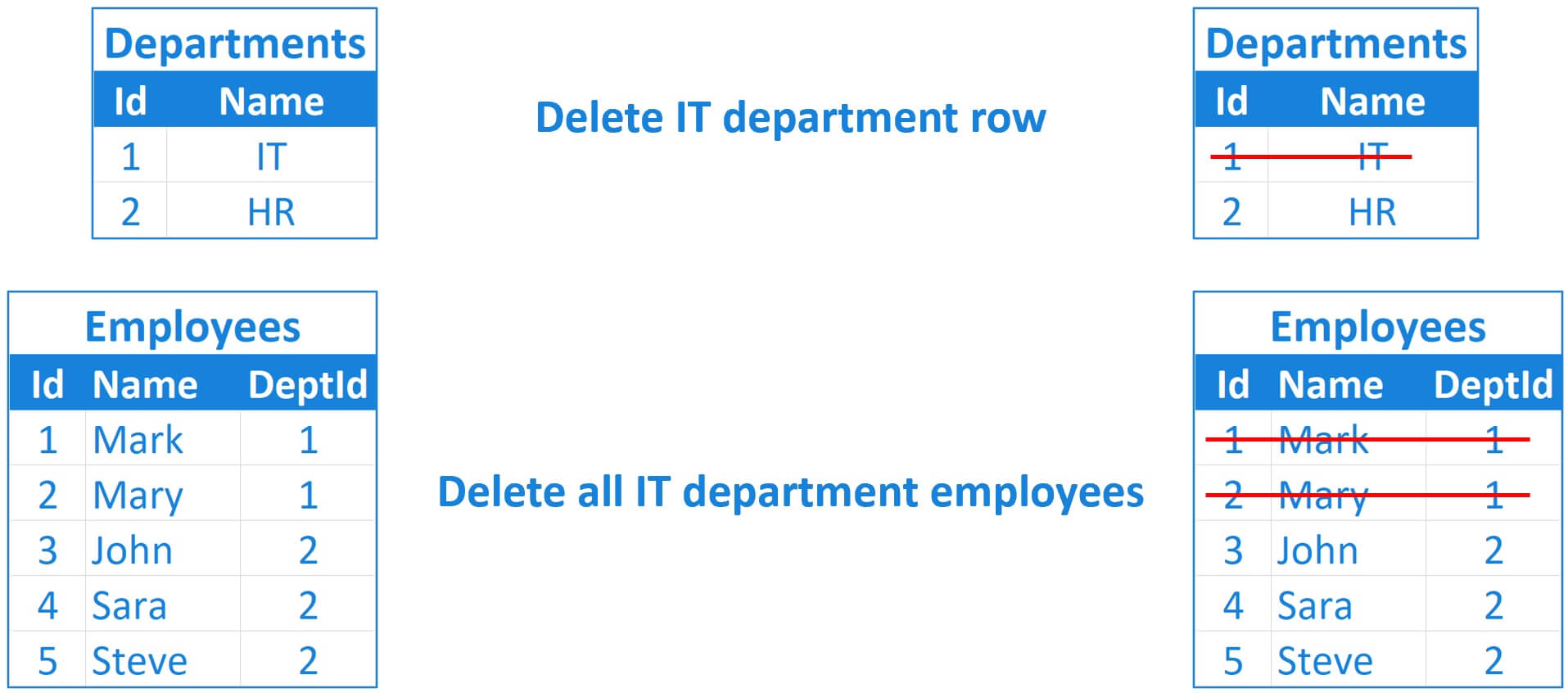
When a row from Departments table is deleted, all the related rows from the Employees table must also be deleted. For example, if we delete the IT department row from the Departments table, we also want all the employees of the IT department to be deleted from the Employees table as well.

Delete parent child rows in SQL

DeptId column in the Employees table is a foreign key referencing Id column in the Departments table.

sql server foreign key cascade delete

So, when a row is deleted from the Departments table, we also want all that department employees to be deleted from the Employees table. Considering the fact that DeptId is a foreign key, the correct way to achieve this is by enforcing cascade deletes.

Error - DELETE statement conflicted with the REFERENCE constraint

If we try to delete a row from the Departments table and if that department has related rows in the Employees table, by default, we get the following REFERENCE CONSTRAINT error

The DELETE statement conflicted with the REFERENCE constraint "FK__Employees__DeptI__38996AB5". The conflict occurred in database "TestDB", table "dbo.Employees", column 'DeptId'.

SQL Server Foreign Key Constraint Cascade Delete

First, drop the existing foreign key constraint

Alter table Employees drop constraint Constraint_Name

Recreate the foreign key constraint with cascading deletes

Alter table Employees
add constraint FK_Dept_Employees_Cascade_Delete
foreign key (DeptId) references Departments(Id) on delete cascade

With foreign key constraint cascade deletes in place, when we delete a row from the Departments table, all the related rows from the Employees table are also automatically deleted.

Same foreign key in multiple tables

What if we have the same foreign key in multiple tables? In the following example, in both the tables (Teachers and Students) GenderId is foreign key referencing Id column from the Gender table.

same foreign key in multiple tables

Well, same idea, with foreign key cascading deletes on, when a row from the Gender table is deleted, all the related rows from both the tables (i.e Teachers and Students) are also deleted automatically.

What if we do not have a foreign key constraint or we do not want to turn on cascade deletes

Well, in that case you can use a sql query like the following to do the deletes yourself. First delete the rows from the child tables and then from the parent table. We are using a SQL transaction to treat all the DELETE queries as one unit. All of the DELETES should succeed. If one of the DELETE query fails for some reason, rollback the transaction and UNDO the deletes.

Begin Try

       Begin Tran 

       Declare @GenderToDelete int =

       -- Delete first from child tables
       Delete from Teachers where GenderId = @GenderToDelete
       Delete from Students where GenderId = @GenderToDelete 

       -- Finally Delete from parent table
       Delete from Gender where Id = @GenderToDelete 

       Commit Tran
End Try 

Begin Catch

       Rollback Tran

End Catch

Please note : Always delete child records before deleting parent record, otherwise if a foreign key constraint is introduced later, your queries will start to fail.

SQL Script for tables (Departments and Employees)

Create table Departments
(
       Id int primary key identity,
       [Name] nvarchar(50)
)
Go

Create table Employees
(
       Id int primary key identity,
       [Name] nvarchar(50),
       DeptId int foreign key references Departments(Id)
)
Go 

Insert into Departments values ('IT')
Insert into Departments values ('HR')
Go 

Insert into Employees values ('Mark', 1)
Insert into Employees values ('Mary', 1)
Insert into Employees values ('John', 2)
Insert into Employees values ('Sara', 2)
Insert into Employees values ('Steve', 2)

SQL Script for tables (Gender, Teachers and Students)

Create table Gender
(
       Id int primary key identity,
       Gender nvarchar(20)
)
Go 

Create table Teachers
(
       Id int primary key identity,
       [Name] nvarchar(50),
       GenderId int foreign key references Gender(Id) on delete cascade
)
Go

Create table Students
(
       Id int primary key identity,
       [Name] nvarchar(50),
       GenderId int foreign key references Gender(Id) on delete cascade
)
Go

Insert into Gender values ('Male')
Insert into Gender values ('Female')
Go

Insert into Teachers values ('Mark', 1)
Insert into Teachers values ('John', 1)
Insert into Teachers values ('Mary', 2)
Insert into Teachers values ('Sara', 2)
Insert into Teachers values ('Flo', 2)
Go

Insert into Students values ('David', 1)
Insert into Students values ('Ron', 1)
Insert into Students values ('Jess', 2)
Insert into Students values ('Tara', 2)
Insert into Students values ('Innes', 2)
Go

Alter table Teachers
add constraint FK_Gender_Employees
foreign key (GenderId) references Gender(Id)

Alter table Students
add constraint FK_Gender_Students
foreign key (GenderId) references Gender(Id)

How and why a sql inner left right full and even cross join returns the same row count

We have 2 tables - TableA and TableB. Both the tables have just one column each. TableA has 2 rows and TableB has 3 rows.

sql inner join cross join return same count how

To join both these tables, we are using ColumnA in TableA and ColumnB in TableB. The following is the SQL Server interview question.

No matter how you join these 2 tables, the query produces the same result i.e 6 rows - How and Why?

  1. Inner Join
  2. Left Outer Join
  3. Right Outer Join
  4. Full Outer Join OR
  5. even Cross Join

SQL Script to create and populate the tables with test data

Create Table TableA
(
       ColumnA int
)
Go

Create Table TableB
(
       ColumnB int
)
Go

Insert into TableA Values (1)
Go 

Insert into TableB Values (1)
Go

Select ColumnA, ColumnB
from TableA
inner join TableB
on TableA.ColumnA = TableB.ColumnB

Select ColumnA, ColumnB
from TableA
left outer join TableB
on TableA.ColumnA = TableB.ColumnB

Select ColumnA, ColumnB
from TableA
right outer join TableB
on TableA.ColumnA = TableB.ColumnB

Select ColumnA, ColumnB
from TableA
full outer join TableB
on TableA.ColumnA = TableB.ColumnB 

Select ColumnA, ColumnB
from TableA
cross join TableB

All the above queries return the same row count - 6 rows. How and why all the different types of joins return the same count of rows.

sql inner left right join same results

Every row in TableA matches with every row in TableB, so what we get back is a cartesian product i.e the number of rows in TableA multiplied by the number of rows in TableB. So, in essence it's like a cross join. 

sql inner left right join result same how

TableA has 2 rows and TableB 3 rows. Every row in TableA matches with every row in TableB. So irrespective of the type of join we get the cartesian product 6, i.e 2 rows in TableA multiplied by 3 rows in TableB.

What do you think is the result going to be if we add one more row with a value of 1 to TableB.

Well, the same logic, Cartesian product. 2 rows in TableA multiplied by 4 rows in TableB. So, the answer is 8.

Insert into TableA Values (1)
Go

Execute all the 5 select queries again and you will get 8 rows as the result.

Are you still confused? Let's look at another example.

Drop both the tables

Drop table TableA
Drop table TableB

Recreate the tables. We now have a second column called SomeValue in both the tables.

Create Table TableA
(
       ColumnA int,
       SomeValue nvarchar(2)
)
Go

Create Table TableB
(
       ColumnB int,
       SomeValue nvarchar(2)
)
Go

--Insert test data.

Insert into TableA Values (1, 'A1')
Insert into TableA Values (1, 'A2')
Go 

Insert into TableB Values (1, 'B1')
Insert into TableB Values (1, 'B2')
Insert into TableB Values (1, 'B3')
Go

Now, the select queries. In addition to ColumnA and ColumnB we also want to select SomeValue From TableA. Let's give it an alias TableASomeValue. Similarly SomeValue column from TableB as well. Let's call it TableBSomeValue.

Let's include the same select list on the rest of the 4 queries - that is left join, right join, full join, and cross join.

Select ColumnA, ColumnB, TableA.SomeValue as [TableASomeValue],
TableB.SomeValue as [TableBSomeValue]
from TableA inner join
TableB on TableA.ColumnA = TableB.ColumnB 

Select ColumnA, ColumnB, TableA.SomeValue as [TableASomeValue],
TableB.SomeValue as [TableBSomeValue]
from TableA left outer join
TableB on TableA.ColumnA = TableB.ColumnB 

Select ColumnA, ColumnB, TableA.SomeValue as [TableASomeValue],
TableB.SomeValue as [TableBSomeValue]
from TableA right outer join
TableB on TableA.ColumnA = TableB.ColumnB 

Select ColumnA, ColumnB, TableA.SomeValue as [TableASomeValue],
TableB.SomeValue as [TableBSomeValue]
from TableA full outer join
TableB on TableA.ColumnA = TableB.ColumnB

Select ColumnA, ColumnB, TableA.SomeValue as [TableASomeValue],
TableB.SomeValue as [TableBSomeValue]
from TableA cross join TableB

Execute all the queries. Notice the output. 

all sql join types produce same result

It takes that first row in TableA, that is the the row which has the value A1 and returns every row in TableB, so we have A1B1, A1B2, A1B3. The same happends even with the second row in TableA. So we have A2B1, A2B2, A2B3.

ASP.NET core razor pages course wrap up

Suggested Videos
Part 32 - Using stored procedure in entity framework core | Text | Slides
Part 33 - FromSqlRaw vs ExecuteSqlRaw in ASP.NET Core | Text | Slides
Part 34 - Scaffolding CRUD Operations in ASP.NET Core | Text | Slides

This is Part 35 and the last video in this ASP.NET core razor pages tutorial.

Why use ASP.NET core razor pages framework

ASP.NET Core Razor Pages framework is a new technology to build page-focused web applications quicker and more efficiently with clean separation of concerns. Razor pages are introduced in .NET Core 2.0. It is lightweight, flexible and provides the developer the full control over the rendered HTML. 


The recommendation from Microsoft is to use razor pages if we are building a Web UI (i.e web pages) and ASP.NET Core MVC if we are building a Web API. 

Download source code and setup the project to run on your local machine

Download the project source code from the following URL


Download RazorPagesTutorial.rar file.

razor pages project download

Extract the project source code and open the solution file using Visual Studio 2019.

Execute the following command from Visual Studio Package Manager Console. Make sure you have selected the web project (RazorPagesTutorial) from the Default project dropdownlist. This creates the database and applies all the migrations.

Update-Database

After the command completes, run the project using CTRL + F5

asp.net core tutorial for beginners

ASP.NET core razor pages course wrap up - Slides


React Installation and Setup - Slides


React Installation and Setup

Suggested Videos
Part 1 - ReactJS Introduction | Text | Slides

For setting up React in our local system, first step is to Install NodeJs and npm.

Install Nodejs


Node.js provides a runtime environment to execute JavaScript code from outside a browser. NPM, Node package manager is used for managing and sharing the packages for either React or Angular. 

NPM will be installed along with Nodejs. 

Node.js can be downloaded and installed from the official NodeJs website.


Once the Installation of Node is complete. Open Node.Js Command Prompt and we can check the Version as well.

Install Create-React-App Tool

The next step is to install a tool called create-react-app using NPM. This tool is used to create react applications easily from our system. You can install this at the system level or temporarily at a folder level. We will install it globally by using the following command.

npm install -g create-react-app

Creating a new react project

After create-react-app is installed, we can create our first react application.

Lets say I want to create the project or application in D:\React_Programs.

I will create this folder and let our command prompt point to it by using change directory command.

Lets create a new Project now using the command.

create-react-app test-project

Remember not to create the project with an upper case character In it.

Running the React Application

Lets do cd to the Project we have created and run it locally on our system using npm start. Launch the browser and visit http://localhost:3000. We can then see our first React Application response in the browser. 

cd test-project
npm start

We have created a New Project using React and executed the Project.

But as a developer we would be more interested to know about the Project which is created, its structure and we would like to play around with it. So it is time for us to get an Editor. When we think of IDE, we have a variety of choices like Visual Studio Code, React IDE, Sublime Editor, Atom Editor, Webstorm and a few others. We will use VS Code as our Editor.

Visual Studio Code is a free IDE from Microsoft built for developing and debugging web applications. It has integrated Git control & terminal.  VS code’s IntelliSense allows Visual Studio Code to provide you with useful hints and auto-completion features while you code. So the next step is to Install Visual Studio Code.

Install Visual Studio Code

Download and install Visual Studio Code from the following URL


After the installation, open the Project we have created earlier using VS Code. The Project has the following 3 folders
  • Node_modules
  • Public
  • src
The output we have seen when the Project is executed comes from a file called Index.html which resides inside public folder.

In index.html we have one div tag with id as root.

<div id="root"></div>

To understand the relation between the output we see and this index.html,

Open src/app.js file. The image and the text we see in the browser are coming from here.

Lets make a small change in the text, save it and lets have a look at the browser. We can see the changes and it happens very fast.

How the index.html is linked to App.js will be discussed in our upcoming videos.

With this we have the react environment setup on our local machine and we are ready to explore React.

React online editors

Lets say we are in office, we have some free time and we’re interested in playing around with React, then you can use an online code playground like  CodePen, CodeSandbox, or Glitch.

For example, lets say we want to create react project using CodePen. In the browser, navigate to https://codepen.io/ and click on Start Coding.

Create a simple div in html section.

<div id="root"></div>

Followed by writing some JavaScript Code :

ReactDOM.render(
  <h1>Welcome to React World</h1>,
  document.getElementById('root')
);

This Code will throw an error as we are missing the references to two Javascript files.

Go to Pen Settings section of Js and add,
  • https://unpkg.com/react/umd/react.development.js
  • https://unpkg.com/react-dom/umd/react-dom.development.js
One script file refers to React and the other refers to ReactDOM which is the Virtual DOM introduced by React.
Set the Javascript Preprocessor to Babel.

With the above settings you should have the output produced as expected.

Babel is a free and open-source JavaScript transcompiler that is mainly used to convert ECMAScript 2015+ code into a backwards compatible version of JavaScript that can be run by older JavaScript engines. Babel is a popular tool for using the newest features of the JavaScript programming language. More about Babel will be discussed in our upcoming videos.

I hope we are clear on doing the React setup and creating our first Project using React.