Support us .Net Basics C# SQL ASP.NET Aarvi MVC Slides C# Programs Subscribe Download

ASP.NET Core Image tag helper

Suggested Videos
Part 34 - Install and use Bootstrap in ASP.NET Core | Text | Slides
Part 35 - Tag helpers in ASP.NET Core | Text | Slides
Part 36 - Why use tag helpers | Text | Slides

In this video we will discuss Image Tag Helper in ASP.NET Core with an example.


Browser Cache

When we visit a web page, most modern browsers cache the images of that web page. When we visit the page again, instead of downloading the same image again from the web server, the browser serves the image from the cache. In most cases, this is not a problem as images do not change that frequently.


Disable Browser Cache

For some reason, if you do not want a browser to use it's cache you can disable it. For example, to disable cache in Google chrome
  • Using F12 key, launch Browser Developer Tools
  • Click on the "Network" tab
  • Check "Disable Cache" checkbox
google chrome disable cache

The obvious problem with disabling the browser cache is that, the images have to be downloaded from the server, every time you visit the page.

ASP.NET Core Image tag helper

From a performance standpoint, wouldn't it be great to download the image only if it has changed on the server. If the image has not changed, use the image from the browser cache. This means we will have the best of both the worlds.

Image Tag Helper can help us achieve this. To use the Image tag helper, include asp-append-version attribute and set it to true.

<img src="~/images/noimage.jpg" asp-append-version="true" />

Image Tag Helper enhances the <img> tag to provide cache-busting behavior for static image files. Based on the content of the image, a unique hash value is calculated and is appended to image URL. This unique string prompts the browser to reload the image from the server and not from the browser cache.

<img class="card-img-top" src="/images/noimage.jpg?v=IqNLbsazJ7ijEbbyzWPke-xWxkOFaVcgzpQ4SsQKBqY" />

Each time the image on the server changes a new hash value is calculated and cached. If the image has not changed the hash isn't recalculated. Using this unique hash value, the browser keeps track of whether the image content on the server has changed.

asp.net core tutorial for beginners

ASP.NET Core Environment Tag Helper - Slides


Why use tag helpers

Suggested Videos
Part 33 - Attribute Routing in ASP.NET Core MVC | Text | Slides
Part 34 - Install and use Bootstrap in ASP.NET Core | Text | Slides
Part 35 - Tag helpers in ASP.NET Core | Text | Slides

In this video we will discuss why should we use tag helpers instead of writing the same HTML by hand. Let's understand the advantage of using tag helpers with an example.


Let's say we want to view a specific employee details. So we want to generate the following hyperlink. The number 5 is the ID of the employee whose details we want to view.

/home/details/5


We could manually generate this as shown below
<a href="/home/details/@employee.Id">View</a>

OR

Use the anchor <a> tag helper as shown below
<a asp-controller="home" asp-action="details" asp-route-id="@employee.Id">View</a>

Advantage of using Tag helpers

Tag helpers generate links based on the application routing templates. This means if we later change routing templates, the links generated by tag helpers will automatically reflect those changes made to the routing templates. The generated links just work. 

Where as if we have hard-coded the URL paths manually, we would have to change the code in lot of places when the application routing templates change.

Let's understand this with an example

The following is the route template our application is using

app.UseMvc(routes =>
{
    routes.MapRoute("default", "{controller=Home}/{action=Index}/{id?}");
});

The following code is not using tag helpers. We are manually generating the link by hard-coding the URL paths.

<a href="/home/details/@employee.Id">View</a>

The following code is using <a> anchor tag helper. 

<a asp-controller="home" asp-action="details"
    asp-route-id="@employee.Id">View</a>

Notice here, we are not hard coding the URL paths. We are only specifying the controller and action names and the route parameters along with their values. When tag helpers are executed on the server they look at the route templates and generate the correct URLs automatically.

Both the above techniques generate the correct URL path (/home/details/5) and it works with the current route template ({controller=Home}/{action=Index}/{id?})

Now let's say we have changed the routing template to the following. Notice in the URL we have the string literal "pragim"

app.UseMvc(routes =>
{
    routes.MapRoute("default", "pragim/{controller=Home}/{action=Index}/{id?}");
});

The code that's using the anchor tag helper generates the following correct link

<a href="/pragim/home/details/1">View</a>

Where as the code that's not using the anchor tag helper continues to generate the following link. Notice the URL path "/pragim" is missing.

<a href="/home/details/1">View</a>

We also have tag helpers that generate forms. When this form is posted back to the server, the posted values are automatically handled and the associated validation messages are displayed. Without these tag helpers we would have to write a lot of custom code to achieve the same. 

If this does not make much sense at the moment, please do not worry. We will discuss form tag helpers when we create "Create Employee" form in our upcoming videos.

asp.net core tutorial for beginners

Why use tag helpers - Slides


Tag helpers in asp.net core

Suggested Videos
Part 32 - Routing in ASP.NET Core MVC | Text | Slides
Part 33 - Attribute Routing in ASP.NET Core MVC | Text | Slides
Part 34 - Install and use Bootstrap in ASP.NET Core | Text | Slides

Tag helpers are new in ASP.NET Core. Let's understand what are Tag Helpers and their use with an example.


What are Tag Helpers

Tag Helpers are server side components. They are processed on the server to create and render HTML elements in Razor files. If you have any experience with previous version of ASP.NET MVC, then you may be familiar with HTML helpers. Tag Helpers are similar to HTML helpers. There are many built-in Tag Helpers for common tasks such as generating links, creating forms, loading assets etc.


Importing built-in Tag Helpers

To make the built-in tag helpers available for all the views in our entire application, import the tag helpers using _ViewImports.cshtml file. To import tag helpers we use @addTagHelper directive.

@addTagHelper *, Microsoft.AspNetCore.Mvc.TagHelpers

The wildcard * indicates that we want to import all the tag helpers
Microsoft.AspNetCore.Mvc.TagHelpers is the assemly that contains the built-in tag helpers

Generating Links using Tag Helpers

Let's say we want to view a specific employee details. So we want to generate the following hyperlink. The number 5 is the ID of the employee whose details we want to view.

/home/details/5

There are several ways we could do this in a razor view

Option 1 : Manually generating the links

@foreach (var employee in Model)
{
    <a href="/home/details/@employee.Id">View</a>
}

Option 2 : Using HTML helpers

@Html.ActionLink("View", "details", new { id = employee.Id })

generates an anchor element

<a href="/hom/details/5">View</a>

@Url.Action("details", "home", new { id = employee.Id })

generates a string

/hom/details/5

Option 3 : Using Tag Helpers

<a asp-controller="home" asp-action="details"
    asp-route-id="@employee.Id">View</a>

generates

<a href="/Home/details/5">View</a>

Anchor Tag Helper

The Anchor Tag Helper enhances the standard HTML anchor (<a ... ></a>) tag by adding new attributes such as 
asp-controller
asp-action
asp-route-{value}

The rendered anchor element's href attribute value is determined by the values of these asp- attributes. 

As the names imply asp-controller specifies the controller name and asp-action specifies the action name to include in the generated href attribute value. asp-route-{value} attribute is used to include route data in the generated href attribute value. {value} can be replaced with the route parameters such as id for example.

<a asp-controller="home" asp-action="details"
    asp-route-id="@employee.Id">View</a>

generates

<a href="/Home/details/5">View</a>

As you can see from the code below, manually generating links is much easier than using HTML Helpers or Tag Helpers.

<a href="/home/details/@employee.Id">View</a>

The obvious question that comes to our mind is, why should we use HTML helpers or Tag Helpers over manually generating these links. We will answer this question in our next video.

asp.net core tutorial for beginners

Tag helpers in asp.net core - Slides


Install and use Bootstrap in ASP.NET Core

Suggested Videos
Part 31 - _ViewImports.cshtml in ASP.NET Core MVC | Text | Slides
Part 32 - Routing in ASP.NET Core MVC | Text | Slides
Part 33 - Attribute Routing in ASP.NET Core MVC | Text | Slides

In this video we will discuss how to install and use Bootstrap in ASP.NET Core


Tools to install client-side packages

There are many tools that we can use with Visual Studio to install client-side packages like Bootstrap and jQuery. For example we could use tools like Bower, NPM, WebPack etc.


However, we are not going to use any of these tools. We will instead use Library Manager (LibMan for short). Library Manager is a light-weight, client-side library acquisition tool. It downloads client-side libraries and frameworks from the file system or from a CDN (Content Delivery Network).

To be able to use LibMan you should have Visual Studio 2017 version 15.8 or later

Check and Upgrade Visual Studio Version

To check the version of Visual Studio you have
  • Click on the "Help" menu item and 
  • Select "About Microsoft Visual Studio" from the context menu
  • The window that appears, displays the version of Visual Studio you have
  • On my machine I have 15.9.4
how to check visual studio version

If you have an older version of Visual Studio 2017, you can easily update it. 

To update visual studio version
  • Click on the "Help" menu item and 
  • Select "Check for Updates" from the context menu
  • The subsequent window that appears display your current version and the latest available version.
  • Simply click the "Update" button
how to update visual studio version

Install Bootstrap Using LibMan
  • Right click on the "Project Name" in Solution Explorer and Select Add > Client-Side Library. In the "Add Client-Side Library" window that opens
  • Leave the default provider which is cdnjs
  • In the "Library" text box, type "twitter-bootstrap". Upon selecting the matching entry, it tries to install the latest version. However, you can manually type the version you want. You also have intellisense support. We will install the lates Bootstrap version 4.
  • You can either include "All the library file" or "Just the files you need"
  • In the "Target Location" text box specify the folder where you want the library files to be copied. Recollect, by default static files are only served from WWWRoot folder.
  • Click the "Install" Button
install bootstrap asp.net core mvc

libman.json file

libman.json is the Library Manager manifest file. Notice in the manifest file we have an entry for the Bootstrap client-side library that we just installed. We can also directly edit the manifest file to install client-side packages, instead of using the user interface provided by LibMan.

Clean and Restore Client-Side Libraries

To clean library files, right click on libman.json file and select "Clean Client-Side Libraries" from the context menu. The clean operation deletes the library files from the destination folder. However, the entries in libman.json will not be deleted.

To restore the deleted files, right click on libman.json file and select "Restore Client-Side Libraries" from the context menu. The restore operation will download and copy the library files into the specified destination folder.

visual studio library manager

Uninstall or Update a Client-Side Library
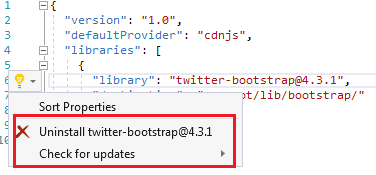
  • Open libman.json file 
  • Click on the client-side library you want to uninstall 
  • A light bulb icon appears
  • Click on the light bulb icon and you will have options to either update or uninstall that specific client-side library
uninstall bootstrap asp.net core

Alternatively, you can also just delete the client-side library entry in libman.json file and upon saving the file, the respective client-side library will be uninstalled.

Similarly, to upgrade or downgrade a client-side library, you can directly change the version number in libman.json file. Upon saving the file, the respective client-side library is updated to the version specified. You will also have intellisense when editing the version number in visual studio.

visual studio libman.json

Site Specific CSS

We will be placing all our site specific CSS in a separate stylesheet. Add a stylesheet with name site.css to the "css" folder. We already created this "css" in "wwwroot" folder.

Copy and paste the following .btn class in site.css

.btn {
    width: 75px;
}

Using Bootstrap in ASP.NET Core Application

To start using Bootstrap in your asp.net core application, include a reference to the Boostrap.css file in the layout file _Layout.cshtml. Also include a reference to our custom stylesheet site.css.

The following is the code in _Layout.cshtml

<html>
<head>
    <meta name="viewport" content="width=device-width" />
    <link href="~/lib/bootstrap/css/bootstrap.css" rel="stylesheet" />
    <link href="~/css/site.css" rel="stylesheet" />
    <title>@ViewBag.Title</title>
</head>
<body>

    <div class="container">
        @RenderBody()
    </div>

    @if (IsSectionDefined("Scripts"))
    {
        @RenderSection("Scripts", required: false)
    }

</body>
</html>

Please note : We are using the Bootstrap "container" class for positioning elements on the page.

Styling Details.cshtml View

We are using Bootstrap 4 styling class to position and style elements on the page.

@model HomeDetailsViewModel

@{
    ViewBag.Title = "Employee Details";
}

<div class="row justify-content-center m-3">
    <div class="col-sm-8">
        <div class="card">
            <div class="card-header">
                <h1>@Model.Employee.Name</h1>
            </div>

            <div class="card-body text-center">
                <img class="card-img-top" src="~/images/noimage.jpg" />

                <h4>Employee ID : @Model.Employee.Id</h4>
                <h4>Email : @Model.Employee.Email</h4>
                <h4>Department : @Model.Employee.Department</h4>

            </div>
            <div class="card-footer text-center">
                <a href="#" class="btn btn-primary">Back</a>
                <a href="#" class="btn btn-primary">Edit</a>
                <a href="#" class="btn btn-danger">Delete</a>
            </div>
        </div>
    </div>
</div>

@section Scripts {
    <script src="~/js/CustomScript.js"></script>
}

Styling Index.cshtml View

We are using Bootstrap 4 styling class to position and style elements on the page.

@model IEnumerable<Employee>

@{
    ViewBag.Title = "Employee List";
}

<div class="card-deck">
    @foreach (var employee in Model)
    {
        <div class="card m-3">
            <div class="card-header">
                <h3>@employee.Name</h3>
            </div>
            <img class="card-img-top" src="~/images/noimage.jpg" />
            <div class="card-footer text-center">
                <a href="#" class="btn btn-primary">View</a>
                <a href="#" class="btn btn-primary">Edit</a>
                <a href="#" class="btn btn-danger">Delete</a>
            </div>
        </div>
    }
</div>

asp.net core tutorial for beginners