Support us .Net Basics C# SQL ASP.NET Aarvi MVC Slides C# Programs Subscribe Download

Static files in asp.net core

Suggested Videos
Part 9 - ASP.NET Core appsettings.json file | Text | Slides
Part 10 - Middleware in ASP.NET Core | Text | Slides
Part 11 - Configure ASP.NET Core request processing pipeline | Text | Slides

In this video we will discuss, how to make ASP.NET Core application serve static files such as HTML, Images, CSS and JavaScript files


Static Files
  • By default, an asp.net core application will not serve static files
  • The default directory for static files is wwwroot and this directory must be in the root project folder

Copy and paste an image in wwwroot folder. let's assume the name of the file is banner.jpg. To be able to access this file from the browser we use

http://{{serverName}}/banner.jpg

In our case we are running on our local machine so the URL would be the following. The port number may be different on your machine.

http://localhost:49119/banner.jpg

On my machine when I navigate to the above URL, I still see the response produced by the middleware I have registered using the Run() method. I do not see the image banner.jpg.

This is because, at the moment our application request processing pipeline does not have the required middleware that can serve static files. The middleware that we need is UseStaticFiles() middleware. 

Modify the code in Configure() method to add UseStaticFiles() middleware to our application's request processing pipeline as shown below.

public void Configure(IApplicationBuilder app, IHostingEnvironment env)
{
    if (env.IsDevelopment())
    {
        app.UseDeveloperExceptionPage();
    }

    // Add Static Files Middleware
    app.UseStaticFiles();

    app.Run(async (context) =>
    {
        await context.Response.WriteAsync("Hello World!");
    });
}

Instead of having all files types like images, css and JavaScript files flat in the wwwroot folder, it is common to have separate folders for css, images and JavaScript under wwwroot as shown below. Consider the following folder hierarchy.

static files in asp.net core

To be able to access image1.jpg from the browser we use
http://localhost:49119/images/image1.jpg

Serving static files outside of wwwroot folder 

By default, UseStaticFiles() middleware only serves the static files that are in wwwroot folder. We can also server static files outside of the wwwroot folder if you want to.

Serving a default document

Most web applications have a default document and it is the document that is displayed when a user visits the root URL of your application. For example, you have a file with name default.html and you want to serve it when the user visits the root url of your application i.e http://localhost:49119/

At the moment, on my machine when I navigate to the root URL, I see the response produced by the middleware I have registered using the Run() method. I do not see the content of the default document default.html. To be able to serve default page we have to plug in the UseDefaultFiles() middleware in our application's request processing pipeline.

// Add Default Files Middleware
app.UseDefaultFiles();
// Add Static Files Middleware
app.UseStaticFiles();

Please Note : UseDefaultFiles must be called before UseStaticFiles to serve the default file. UseDefaultFiles is a URL rewriter that doesn't actually serve the file. It simply rewrites the URL to the default document which will then be served by the Static Files Middleware. The URL displayed in the address bar still reflects the root URL and not the rewritten URL.

The following are the default files which UseDefaultFiles middleware looks for
index.htm
index.html
default.htm
default.html

If you want to use another document like foo.html for example as your default document, you can do so using the following code.

// Specify foo.html as the default document
DefaultFilesOptions defaultFilesOptions = new DefaultFilesOptions();
defaultFilesOptions.DefaultFileNames.Clear();
defaultFilesOptions.DefaultFileNames.Add("foo.html");
// Add Default Files Middleware
app.UseDefaultFiles(defaultFilesOptions);
// Add Static Files Middleware
app.UseStaticFiles();

UseFileServer Middleware

UseFileServer combines the functionality of UseStaticFiles, UseDefaultFiles and UseDirectoryBrowser middleware. DirectoryBrowser middleware, enables directory browsing and allows users to see files within a specified directory. We could replace UseStaticFiles and UseDefaultFiles middlewares with UseFileServer Middleware.

// Use UseFileServer instead of UseDefaultFiles & UseStaticFiles
FileServerOptions fileServerOptions = new FileServerOptions();
fileServerOptions.DefaultFilesOptions.DefaultFileNames.Clear();
fileServerOptions.DefaultFilesOptions.DefaultFileNames.Add("foo.html");
app.UseFileServer(fileServerOptions);

The important point to note here is the pattern that we use to add middleware to our application's request processing pipeline. In most cases we add middleware using the extension methods that start with the word USE. For example,
  • UseDeveloperExceptionPage()
  • UseDefaultFiles()
  • UseStaticFiles()
  • UseFileServer()
If you want to customise these middleware components, we use the respective OPTIONS object. For example notice the respective OPTIONS objects we use.

Middleware Options Object
UseDeveloperExceptionPage DeveloperExceptionPageOptions
UseDefaultFiles DefaultFilesOptions
UseStaticFiles StaticFileOptions
UseFileServer FileServerOptions

asp.net core tutorial for beginners

Static files in asp.net core - Slides


Configure ASP.NET Core request processing pipeline

Suggested Videos
Part 8 - ASP.NET Core launchsettings.json file | Text | Slides
Part 9 - ASP.NET Core appsettings.json file | Text | Slides
Part 10 - Middleware in ASP.NET Core | Text | Slides

In this video we will discuss configuring a request processing pipleline for asp.net core application using the middleware components.


As part of the application startup, Configure() method sets up the request processing pipeline.

public class Startup
{
    public void ConfigureServices(IServiceCollection services)
    {
    }

    public void Configure(IApplicationBuilder app, IHostingEnvironment env)
    {
        if (env.IsDevelopment())
        {
            app.UseDeveloperExceptionPage();
        }

        app.Run(async (context) =>
        {
            await context.Response.WriteAsync("Hello World!");
        });
    }

}


At the moment we have 2 middlewares in the pipeline
  • UseDeveloperExceptionPage() and
  • another middleware that is registered using the Run() method. 
UseDeveloperExceptionPage Middleware : As the name implies, this middleware responds with the developer exception page, if there is an exception and if the environment is Development. We will discuss this DeveloperExceptionPage middleware and the  different environments in our upcoming videos.

The second middleware that is registered using the Run() method, can only write a message to the Response object. At the moment, this is the middleware that responds to every request. 
Doesn’t matter what your request path is. All requests will be handled by this one piece of middleware and the response we get is the string message that the middleware is writing to the Response object. The response is plain text and not html. We can confirm this by inspecting the page source. Notice we do not have any html tags in the source. It’s just, plain text.

Even if you have a file with name foo.html and if you include the path to that file in the request, our application will not be able to serve that static file. This is because, at the moment our request processing pipeline does not have the middleware that can serve static files like html files, images, css and JavaScript files. As we progress through this course we will add the required middleware to be able to serve static files.

Consider the following code in the Configure() method.

app.Run(async (context) =>
{
    await context.Response.WriteAsync("Hello World!");
});

Code Explanation
  • We are using Run() method to add middleware to our application's request processing pipeline
  • If you hover the mouse over the Run() method, from the intellisense you can see that this Run() method is implemented as an extension method of IApplicationBuilder interface. This is the reason we are able to invoke this Run() method on IApplicationBuilder object app.
  • The parameter that we are passing to the Run() method is a RequestDelegate which we can see from the intellisense.
  • RequestDelegate is a delegate that has HttpContext object as a parameter. 
  • It is through this HttpContext object, the middleware gains access to both the incoming http request and outgoing http response.
  • At the moment, we are passing request delegate inline as an anonymous method using a lambda. If you are new to the concept of delegates and lambda, please check out the following 3 videos from our C# tutorial.
  • Instead of passing the request delegate inline as an anonymous method, we can define the request delegate in a separate reusable class.
  • With this Run() extension method we can only add a terminal middleware to the request pipeline.
  • A terminal middleware is a middleware that does not call the next middleware in the pipeline
Consider the following code

app.Run(async (context) =>
{
    await context.Response.WriteAsync("Hello from 1st Middleware");
});

app.Run(async (context) =>
{
    await context.Response.WriteAsync("Hello from 2nd Middleware");
});
  • We have 2 middlewares registered using the Run() method
  • Upon running this project, we only see the response from the first middleware
  • We do not see the response from the second middleware
  • This is because, a middleware that is registered using the Run() method cannot call the next middleware in the pipeline
  • So, the middleware that we register using Run() method is a terminal middleware
If you want your middleware to be able to call the next middleware in the pipeline, then register the middleware using Use() method as shown below.

app.Use(async (context, next) =>
{
    await context.Response.WriteAsync("Hello from 1st Middleware");
    await next();
});

app.Run(async (context) =>
{
    await context.Response.WriteAsync("Hello from 2nd Middleware");
});

Notice, Use() method has 2 parameters. The first parameter is the HttpContext context object and the second parameter is the Func type i.e it is a generic delegate that represents the next middleware in the pipeline.

Now, consider the following code

public void Configure(IApplicationBuilder app, IHostingEnvironment env,
                ILogger<Startup> logger)
{
    app.Use(async (context, next) =>
    {
        logger.LogInformation("MW1: Incoming Request");
        await next();
        logger.LogInformation("MW1: Outgoing Response");
    });

    app.Use(async (context, next) =>
    {
        logger.LogInformation("MW2: Incoming Request");
        await next();
        logger.LogInformation("MW2: Outgoing Response");
    });

    app.Run(async (context) =>
    {
        await context.Response.WriteAsync("MW3: Request handled and response produced");
        logger.LogInformation("MW3: Request handled and response produced");
    });
}
  • ILogger<Startup> is injected into the Configure() method
  • CreateDefaultBuilder() that is called by the Main() method configures logging
  • You can verify this on their GitHub page using the link below
    https://github.com/aspnet/MetaPackages/blob/release/2.2/src/Microsoft.AspNetCore/WebHost.cs
  • Please check the method ConfigureLogging()
  • You will find that, loggers for Console, Debug and EventSource are configured
  • We are using the logger instance provided by the Dependency Injection system to log the information
  • If you run the project using the .NET Core CLI, you can see the logged information on the Console window
  • If you run the project directly from Visual Studio, you can see the logged information in the output window. Select ASP.NET Core Web Server from the dropdownlist in the output window.
  • You will see that, the information is logged in the following order
    • MW1: Incoming Request
    • MW2: Incoming Request
    • MW3: Request handled and response produced
    • MW2: Outgoing Response
    • MW1: Outgoing Response
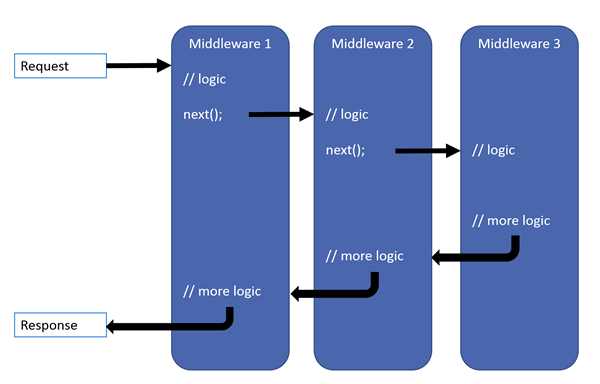
Now relate the above output, with the following diagram from MSDN to understand what's happening.
  • Remember a middleware in asp.net core has access to both the incoming request and the outgoing response
  • The request first arrives at Middleware1 which logs (MW1: Incoming Request) so we see this message first. 
  • Then Middleware1 calls next(). Calling next() invokes Middleware2 in the pipeline. 
  • Middleware2 logs (MW2: Incoming Request). So we see (MW2: Incoming Request) after (MW1: Incoming Request).
  • Then Middleware2 calls next() which invokes Middleware3
  • Middleware3 handles the request and produces a response. Hence, the next message that we see is (MW3: Request handled and response produced)
  • So, at this point the pipeline starts to reverse itself.
  • The control is then given to Middleware2 and the response produced by Middleware3 is passed to it. Middleware2 then logs (MW2: Outgoing Response) which is what we see next.
  • Finally Middleware2 gives control to Middleware1.
  • Middleware1 logs (MW1: Outgoing Response) which is what we see finally.
So here are the 3 very important points to keep in mind regarding the request processing pipeline
  • Everything that happens before the next() method is invoked in each of the middleware components, happen as the request travels from middleware to middleware through the pipeline and this is represented by the incoming arrow.
  • When a middleware handles the request and produces response, the request processing pipeline starts to reverse.
  • Everything that happens after the next() method is invoked in a middleware component, happens as the response travels from middleware to middleware through the pipeline and this is represented by the outgoing arrow.
I hope you now have a good understanding of the request processing pipeline in asp.ent core.

asp.net core tutorial for beginners

Configure ASP.NET Core request processing pipeline - Slides


Middleware in ASP.NET Core

Suggested Videos
Part 7 - ASP.NET Core out of process hosting | Text | Slides
Part 8 - ASP.NET Core launchsettings.json file | Text | Slides
Part 9 - ASP.NET Core appsettings.json file | Text | Slides

In this video we will understand, what Middleware is in ASP.NET Core


What is Middleware in ASP.NET Core
In ASP.NET Core, Middleware is a piece of software that can handle an HTTP request or response. A given middleware component in ASP.NET Core has a very specific purpose. For example we may have a middleware component that authenticates a user, another piece of middleware to handle errors, yet another middleware to serve static files such as JavaScript files, CSS files, Images etc. 


It is these middleware components that we use to setup a request processing pipeline in ASP.NET Core. It is this pipeline that determines how a request is processed. The request pipeline is configured as part of the application startup by the Configure() method in Startup.cs file.  The following is the code in Configure() method.

public void Configure(IApplicationBuilder app, IHostingEnvironment env)
{
    if (env.IsDevelopment())
    {
        app.UseDeveloperExceptionPage();
    }

    app.Run(async (context) =>
    {
        await context.Response.WriteAsync("Hello World!");
    });
}

As you can see, the code in the Configure() method that is generated by the empty project template sets up a very simple request processing pipeline with just two pieces of middleware.

UseDeveloperExceptionPage is one middleware and the second middleware is setup using the Run() method. As it stands right now with this very simple request processing pipeline, all our application can do is write a message to the response object that will be displayed by the browser. We will come back and understand the code in this method in detail in our next video. For now let’s understand what is middleware and how it works in asp.net core.


The following diagram helps us understand middleware components and how they fit in a request processing pipeline

middleware in asp.net core

In ASP.NET Core, a Middleware component has access to both - the incoming request and the outgoing response. So a Middleware component may process an incoming request and pass that request to the next piece of middleware in the pipeline for further processing. For example, if you have a logging middleware, it might simply log the time the request is made and pass the request to the next piece of middleware for further processing.

A middleware component may handle the request and decide not to call the next middleware in the pipeline. This is called short-circuiting the request pipeline. Short-circuiting is often desirable because it avoids unnecessary work. For example, if the request is for a static file like an image or css file, the StaticFiles middleware can handle and serve that request and short-circuit the rest of the pipeline. This means in our case, the StaticFiles middleware will not call the MVC middleware if the request is for a static file.

A middleware component may handle an incoming HTTP request by generating an HTTP response. For example, mvcmiddleware in the pipeline handles a request to the URL /employees and returns a list of employees. As we progress through this course, in our upcoming videos we will be including the mvcmiddleware in the request processing pipeline of our application.

A middleware component may also process the outgoing response. For example, the logging middleware component may log the time the response is sent. In addition it may also calculate the over all time taken to process the request by computing the difference between request received and response sent times.

Middleware components are executed in the order they are added to the pipeline. Care should be taken to add the middleware in the right order, otherwise the application may not function as expected. In our upcoming videos, we will discuss with an example, what happens if the middleware components are not added to the processing pipeline in the correct order.

The middleware components are available as NuGet packages. This means updates are now handled by NuGet, providing the ability to update each middleware separately.

Depending on your application requirements you may add as many or as few middleware components to the request processing pipeline. For example, if you are developing simple web application with a few static HTML pages and images, then your request processing pipeline may contain just "StaticFiles" middleware.

On the other hand, if you are developing a secure data driven web application then you may need several middleware components like StaticFiles middleware, Authentication middleware, Authorization middleware, MVC middleware etc. 


The point that I am trying to make is, you have complete control over configuring the request processing pipeline. This also means from a memory and performance standpoint you only pay for the middleware components you have in your request processing pipeline.

Now that we have a basic understanding of what middleware components are and how they fit in a request processing pipeline, in our next video, we will understand, how to configure a request processing pipeline for our ASP.NET Core application using middleware components.

asp.net core tutorial for beginners

Middleware in ASP.NET Core - Slides


ASP.NET Core appsettings.json file

Suggested Videos
Part 6 - ASP.NET Core in process hosting | Text | Slides
Part 7 - ASP.NET Core out of process hosting | Text | Slides
Part 8 - ASP.NET Core launchsettings.json file | Text | Slides

In this video we will discuss the significance of appsettings.json file in ASP.NET Core project.


Configuration Sources in ASP.NET Core

In previous versions of ASP.NET, we store application configuration settings, like database connection strings for example, in web.config file. In ASP.NET Core application configuration settings can come from the following different configurations sources.
  • Files (appsettings.json, appsettings.{Environment}.json, where {Environment} is the app's current hosting environment)
  • User secrets
  • Environment variables
  • Command-line arguments

appsettings.json file : In the asp.net core project that is generated by the "Empty" project template we already have a file with name appsettings.json. I have modified this file to include a new setting with the key - MyKey.

{
  "Logging": {
    "LogLevel": {
      "Default": "Warning"
    }
  },
  "AllowedHosts": "*",
  "MyKey": "Value of MyKey from appsettings.json"
}

Accessing configuration information 

To access configuration information in the Startup class, inject the IConfiguration service provided by the Framework. Startup class is in Startup.cs file.

public class Startup
{
    private IConfiguration _configuration;

    // Notice we are using Dependency Injection here
    public Startup(IConfiguration configuration)
    {
        _configuration = configuration;
    }

    public void ConfigureServices(IServiceCollection services)
    {
    }

    public void Configure(IApplicationBuilder app, IHostingEnvironment env)
    {
        if (env.IsDevelopment())
        {
            app.UseDeveloperExceptionPage();
        }

        app.Run(async (context) =>
        {
            await context.Response.WriteAsync(_configuration["MyKey"]);
        });
    }
}

Dependency Injection

In previous versions of ASP.NET Dependency Injection was optional and to configure it we have to use frameworks like Ninject, StructureMap etc. In ASP.NET Core Dependency Injection is an integral part. Dependency Injection allow us to create systems that are loosely coupled, extensible and easily testable. We will discuss Dependency Injection in detail in our upcoming videos.

ASP.NET Core IConfiguration service
  • IConfiguration service is setup to read configuration information from all the various configuration sources in asp.net core
  • If you have a configuration setting with the same key in multiple configuration sources, the later configuration sources override the earlier configuration sources 
  • CreateDefaultBuilder() method of the WebHost class which is automatically invoked when the application starts, reads the configuration sources in a specific order.
  • To see the order in which the configuration sources are read, please check out ConfigureAppConfiguration() method on the following link
    https://github.com/aspnet/MetaPackages/blob/release/2.2/src/Microsoft.AspNetCore/WebHost.cs
Upon inspecting the file, you will see, the following is the default order in which the various configuration sources are read
  1. appsettings.json, 
  2. appsettings.{Environment}.json
  3. User secrets
  4. Environment variables
  5. Command-line arguments
You can change this order if you want to or even add your own custom configuration sources in addition to all the existing configuration sources. We will discuss setting up custom configuration source in our upcoming videos.

asp.net core tutorial for beginners

ASP.NET Core appsettings.json file - Slides


ASP.NET Core launchsettings.json file

Suggested Videos
Part 5 - Main method in asp.net core | Text | Slides
Part 6 - ASP.NET Core in process hosting | Text | Slides
Part 7 - ASP.NET Core out of process hosting | Text | Slides

In this video we will discuss the significance of launchsettings.json file in ASP.NET Core project.


launchsettings.json file 
  • You will find this file in the "Properties" folder in the project root folder.
  • The settings in this file are used when we run this ASP.NET core project either from Visual Studio or by using .NET Core CLI.
  • This file is only used on local development machine. We do not need it for publishing our asp.net core application.
  • If there are certain settings that you want your asp.net core application to use when you publish and deploy your app, store them in appsettings.json file. We usually store our application configuration settings in this file. 
  • We can also have environment specific appsettings.json files. For example, appsettings.Staging.json for the staging environment. In ASP.NET Core, in addition to appsettings.json file, we also have other configuration sources like Environment variables, User Secrets, Command Line Arguments and even our own custom configuration source.
  • More on these different configuration sources and appsettings.json file in our next video.

Lanuch Profiles in ASP.NET Core

At the moment, the following are the settings in launchSettings.json file

{
  "iisSettings": {
    "windowsAuthentication": false,
    "anonymousAuthentication": true,
    "iisExpress": {
      "applicationUrl": "http://localhost:48118",
      "sslPort": 0
    }
  },
  "profiles": {
    "IIS Express": {
      "commandName": "IISExpress",
      "launchBrowser": true,
      "environmentVariables": {
        "ASPNETCORE_ENVIRONMENT": "Development"
      }
    },
    "EmployeeManagement": {
      "commandName": "Project",
      "launchBrowser": true,
      "environmentVariables": {
        "ASPNETCORE_ENVIRONMENT": "Development"
      },
      "applicationUrl": "http://localhost:5000"
    }
  }
}

Notice, we have 2 profiles - IIS Express and EmployeeManagement

When we run the project from Visual Studio by pressing CTRL + F5 or just F5, by default, the profile with "commandName": "IISExpress" is used. On the other hand, if we run the project using .NET Core CLI (dotnet run), the profile with the  "commandName": "Project" is used. 

However, we can change which profile to use by clicking on the dropdownlist in Visual Studio

asp.net core launch profile

The value of the commandName property can be any one of the following. 
  • Project
  • IISExpress
  • IIS
This value along with the value of AspNetCoreHostingModel element in the project file, specifies the internal and external web server (reverse proxy server) to launch.

commandName AspNetCoreHostingModel Internal Web Server External Web Server
Project Hosting Setting Ignored Only one web server is used - Kestrel
IISExpress InProcess Only one web server is used - IIS Express
IISExpress OutOfProcess Kestrel IIS Express
IIS InProcess Only one web server is used - IIS
IIS OutOfProcess Kestrel IIS

You can change the settings in launchSettings.json file by directly editing the file or we can also change the settings using the Graphical User Interface (GUI) provided by Visual Studio. 

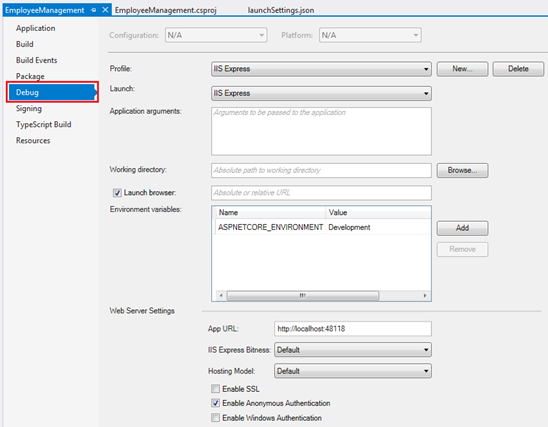
To access the GUI
  • Right click on the project name in Solution Explorer in Visual Studio and select "Properties" from the context menu.
  • Click on the "Debug" tab on the project "Properties" window
asp.net core launchsettings.json file

Using the GUI we can change the settings in launchSettings.json file. Notice, the Environment Variable "ASPNETCORE_ENVIRONMENT" is set to "Development". We can change this value to Staging or Production depending on whether we are running this project in Staging or Production environment. 

We can also add new environment Variables. These environment variables are available throughout our asp.net core application and we can include code that conditionally executes depending on the value of these environment variables. 

For example, consider the following code in the Configure() method in Startup.cs file

public void Configure(IApplicationBuilder app, IHostingEnvironment env)
{
    if (env.IsDevelopment())
    {
        app.UseDeveloperExceptionPage();
    }

    // Rest of the code...
}

Developer Exception Page is only displayed if the environment is Development. We will discuss environment variables and developer exception page in detail in our upcoming videos.

asp.net core tutorial for beginners