Support us .Net Basics C# SQL ASP.NET Aarvi MVC Slides C# Programs Subscribe Download

Row_Number function in SQL Server

Suggested Videos
Part 106 - Grouping_Id function in SQL Server
Part 107 - Debugging sql server stored procedures
Part 108 - Over clause in SQL Server


In this video we will discuss Row_Number function in SQL Server. This is continuation to Part 108. Please watch Part 108 from SQL Server tutorial before proceeding.


Row_Number function
  • Introduced in SQL Server 2005
  • Returns the sequential number of a row starting at 1
  • ORDER BY clause is required
  • PARTITION BY clause is optional
  • When the data is partitioned, row number is reset to 1 when the partition changes
Syntax : ROW_NUMBER() OVER (ORDER BY Col1, Col2)

Row_Number function without PARTITION BY : In this example, data is not partitioned, so ROW_NUMBER will provide a consecutive numbering for all the rows in the table based on the order of rows imposed by the ORDER BY clause.

SELECT Name, Gender, Salary,
        ROW_NUMBER() OVER (ORDER BY Gender) AS RowNumber
FROM Employees

sql server row_number example

Please note : If ORDER BY clause is not specified you will get the following error
The function 'ROW_NUMBER' must have an OVER clause with ORDER BY

Row_Number function with PARTITION BY : In this example, data is partitioned by Gender, so ROW_NUMBER will provide a consecutive numbering only for the rows with in a parttion. When the partition changes the row number is reset to 1.

SELECT Name, Gender, Salary,
        ROW_NUMBER() OVER (PARTITION BY Gender ORDER BY Gender) AS RowNumber
FROM Employees

sql server row_number example

Use case for Row_Number function : Deleting all duplicate rows except one from a sql server table. 

Discussed in detail in Part 4 of SQL Server Interview Questions and Answers video series.

Row_Number function in SQL Server


Over clause in SQL Server

Suggested Videos
Part 105 - Grouping function in SQL Server
Part 106 - Grouping_Id function in SQL Server
Part 107 - Debugging sql server stored procedures


In this video we will discuss the power and use of Over clause in SQL Server.


The OVER clause combined with PARTITION BY is used to break up data into partitions. 
Syntax : function (...) OVER (PARTITION BY col1, Col2, ...)

The specified function operates for each partition.

For example : 
COUNT(Gender) OVER (PARTITION BY Gender) will partition the data by GENDER i.e there will 2 partitions (Male and Female) and then the COUNT() function is applied over each partition.

Any of the following functions can be used. Please note this is not the complete list.
COUNT(), AVG(), SUM(), MIN(), MAX(), ROW_NUMBER(), RANK(), DENSE_RANK() etc.

Example : We will use the following Employees table for the examples in this video.
over clause in sql server

SQl Script to create Employees table
Create Table Employees
(
     Id int primary key,
     Name nvarchar(50),
     Gender nvarchar(10),
     Salary int
)
Go

Insert Into Employees Values (1, 'Mark', 'Male', 5000)
Insert Into Employees Values (2, 'John', 'Male', 4500)
Insert Into Employees Values (3, 'Pam', 'Female', 5500)
Insert Into Employees Values (4, 'Sara', 'Female', 4000)
Insert Into Employees Values (5, 'Todd', 'Male', 3500)
Insert Into Employees Values (6, 'Mary', 'Female', 5000)
Insert Into Employees Values (7, 'Ben', 'Male', 6500)
Insert Into Employees Values (8, 'Jodi', 'Female', 7000)
Insert Into Employees Values (9, 'Tom', 'Male', 5500)
Insert Into Employees Values (10, 'Ron', 'Male', 5000)
Go

Write a query to retrieve total count of employees by Gender. Also in the result we want Average, Minimum and Maximum salary by Gender. The result of the query should be as shown below.
sql server group by min max

This can be very easily achieved using a simple GROUP BY query as show below.
SELECT Gender, COUNT(*) AS GenderTotal, AVG(Salary) AS AvgSal,
        MIN(Salary) AS MinSal, MAX(Salary) AS MaxSal
FROM Employees
GROUP BY Gender

What if we want non-aggregated values (like employee Name and Salary) in result set along with aggregated values
non-aggregate columns in a group by query

You cannot include non-aggregated columns in the GROUP BY query.
SELECT Name, Salary, Gender, COUNT(*) AS GenderTotal, AVG(Salary) AS AvgSal,
        MIN(Salary) AS MinSal, MAX(Salary) AS MaxSal
FROM Employees
GROUP BY Gender

The above query will result in the following error
Column 'Employees.Name' is invalid in the select list because it is not contained in either an aggregate function or the GROUP BY clause

One way to achieve this is by including the aggregations in a subquery and then JOINING it with the main query as shown in the example below. Look at the amount of T-SQL code we have to write.
SELECT Name, Salary, Employees.Gender, Genders.GenderTotals,
        Genders.AvgSal, Genders.MinSal, Genders.MaxSal   
FROM Employees
INNER JOIN
(SELECT Gender, COUNT(*) AS GenderTotals,
          AVG(Salary) AS AvgSal,
         MIN(Salary) AS MinSal, MAX(Salary) AS MaxSal
FROM Employees
GROUP BY Gender) AS Genders
ON Genders.Gender = Employees.Gender

Better way of doing this is by using the OVER clause combined with PARTITION BY
SELECT Name, Salary, Gender,
        COUNT(Gender) OVER(PARTITION BY Gender) AS GenderTotals,
        AVG(Salary) OVER(PARTITION BY Gender) AS AvgSal,
        MIN(Salary) OVER(PARTITION BY Gender) AS MinSal,
        MAX(Salary) OVER(PARTITION BY Gender) AS MaxSal
FROM Employees

Over clause in SQL Server


Debugging sql server stored procedures

Suggested Videos
Part 104 - Difference between cube and rollup in SQL Server
Part 105 - Grouping function in SQL Server
Part 106 - Grouping_Id function in SQL Server


In this video we will discuss how to debug stored procedures in SQL Server.


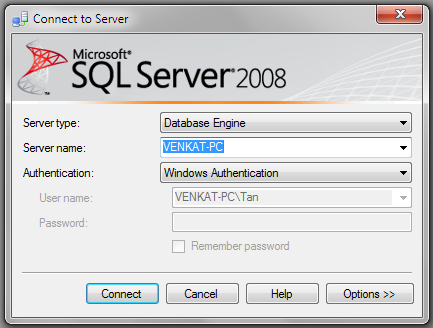
Setting up the Debugger in SSMS : If you have connected to SQL Server using (local) or . (period), and when you start the debugger you will get the following error
Unable to start T-SQL Debugging. Could not connect to computer.
unable to start t-sql debugging. could not connect to computer

To fix this error, use the computer name to connect to the SQL Server instead of using (local) or .
debugging in ssms

For the examples in this video we will be using the following stored procedure.
Create procedure spPrintEvenNumbers
@Target int
as
Begin
     Declare @StartNumber int
     Set @StartNumber = 1

     while(@StartNumber < @Target)
     Begin
          If(@StartNumber%2 = 0)
          Begin
              Print @StartNumber
          End
          Set @StartNumber = @StartNumber + 1
     End
     Print 'Finished printing even numbers till ' + RTRIM(@Target)
End

Connect to SQL Server using your computer name, and then execute the above code to create the stored procedure. At this point, open a New Query window. Copy and paste the following T-SQL code to execute the stored procedure.

DECLARE @TargetNumber INT
SET @TargetNumber = 10
EXECUTE spPrintEvenNumbers @TargetNumber
Print 'Done'

Starting the Debugger in SSMS : There are 2 ways to start the debugger
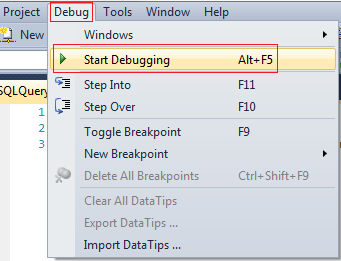
1. In SSMS, click on the Debug Menu and select Start Debugging
start debugging in sql server 2008

2. Use the keyboard shortcut ALT + F5

At this point you should have the debugger running. The line that is about to be executed is marked with an yellow arrow
debugging sql queries

Step Over, Step into and Step Out in SSMS : You can find the keyboard shortcuts in the Debug menu in SSMS.
difference between step into step over and step out

Let us understand what Step Over, Step into and Step Out does when debugging the following piece of code
difference between step into and step over in debugging

1. There is no difference when you STEP INTO (F11) or STEP OVER (F10) the code on LINE 2

2. On LINE 3, we are calling a Stored Procedure. On this statement if we press F10 (STEP OVER), it won't give us the opportunity to debug the stored procedure code. To be able to debug the stored procedure code you will have to STEP INTO it by pressing F11.

3. If the debugger is in the stored procedure, and you don't want to debug line by line with in that stored procedure, you can STEP OUT of it by pressing SHIFT + F11. When you do this, the debugger completes the execution of the stored procedure and waits on the next line in the main query, i.e on LINE 4 in this example.

To stop debugging : There are 2 ways to stop debugging
1. In SSMS, click on the Debug Menu and select Stop Debugging
2. Use the keyboard shortcut SHIFT + F5

Show Next Statement shows the next statement that the debugger is about to execute.
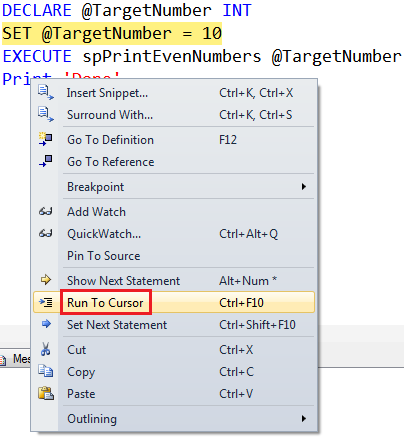
Run to Cursor command executes all the statements in a batch up to the current cursor position
run to cursor in ssms

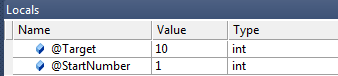
Locals Window in SSMS : Displays the current values of variables and parameters 
Locals window in SSMS

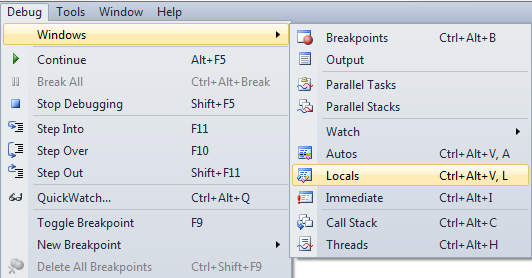
If you cannot see the locals window or if you have closed it and if you want to open it, you can do so using the following menu option. Locals window is only available if you are in DEBUG mode.
view locals window in ssms

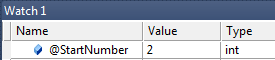
Watch Window in SSMS : Just like Locals window, Watch window is used to watch the values of variables. You can add and remove variables from the watch window. To add a variable to the Watch Window, right click on the variable and select "Add Watch" option from the context menu.
Watch Window in SSMS

Call Stack Window in SSMS : Allows you to navigate up and down the call stack to see what values your application is storing at different levels. It's an invaluable tool for determining why your code is doing what it's doing.
Call Stack Window in SSMS

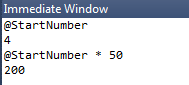
Immediate Window in SSMS : Very helpful during debugging to evaluate expressions, and print variable values. To clear immediate window type >cls and press enter.
Immediate Window in SSMS

Breakpoints in SSMS : There are 2 ways to set a breakpoint in SSMS.
1. By clicking on the grey margin on the left hand side in SSMS (to remove click again)
2. By pressing F9 (to remove press F9 again)

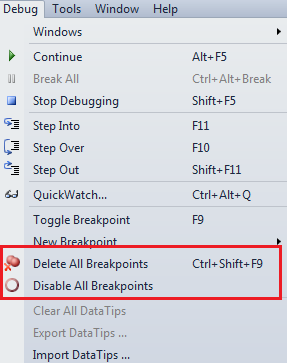
Enable, Disable or Delete all breakpoints : There are 2 ways to Enable, Disable or Delete all breakpoints

1. From the Debug menu
disable all breakpoints in ssms

2. From the Breakpoints window. To view Breakpoints window select Debug => Windows => Breakpoints or use the keyboard shortcut ALT + CTRL + B
view breakpoints window in ssms

Conditional Breakpoint : Conditional Breakpoints are hit only when the specified condition is met. These are extremely useful when you have some kind of a loop and you want to break, only when the loop variable has a specific value (For example loop varible = 100).

How to set a conditional break point in SSMS : 
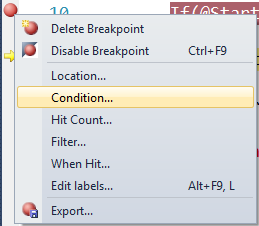
1. Right click on the Breakpoint and select Condition from the context menu
how to set conditional breakpoint in ssms

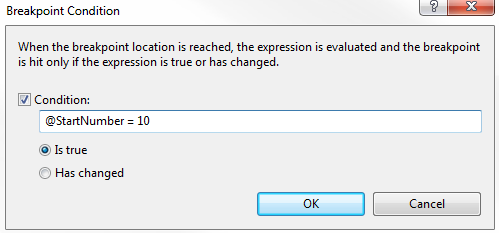
2. In the Breakpoint window specify the condition
setting a conditional breakpoint ssms

Debugging sql server stored procedures


GROUPING_ID function in SQL Server

Suggested Videos
Part 103 - Cube in SQL Server
Part 104 - Difference between cube and rollup in SQL Server
Part 105 - Grouping function in SQL Server


In this video we will discuss
1. GROUPING_ID function in SQL Server
2. Difference between GROUPING and GROUPING_ID functions
3. Use of GROUPING_ID function


GROUPING_ID function computes the level of grouping.

Difference between GROUPING and GROUPING_ID

Syntax : GROUPING function is used on single column, where as the column list for GROUPING_ID function must match with GROUP BY column list.

GROUPING(Col1)
GROUPING_ID(Col1, Col2, Col3,...)

GROUPING indicates whether the column in a GROUP BY list is aggregated or not. Grouping returns 1 for aggregated or 0 for not aggregated in the result set. 

GROUPING_ID() function concatenates all the GOUPING() functions, perform the binary to decimal conversion, and returns the equivalent integer. In short
GROUPING_ID(A, B, C) =  GROUPING(A) + GROUPING(B) + GROUPING(C)

Let us understand this with an example. 

SELECT   Continent, Country, City, SUM(SaleAmount) AS TotalSales,
         CAST(GROUPING(Continent) AS NVARCHAR(1)) +
         CAST(GROUPING(Country) AS NVARCHAR(1)) +
         CAST(GROUPING(City) AS NVARCHAR(1)) AS Groupings,
         GROUPING_ID(Continent, Country, City) AS GPID
FROM Sales
GROUP BY ROLLUP(Continent, Country, City)

Query result :


Row Number 1 : Since the data is not aggregated by any column GROUPING(Continent), GROUPING(Country) and GROUPING(City) return 0 and as result we get a binar string with all ZEROS (000). When this converted to decimal we get 0 which is displayed in GPID column.

Row Number 7 : The data is aggregated for Country and City columns, so GROUPING(Country) and GROUPING(City) return 1 where as  GROUPING(Continent) return 0. As result we get a binar string (011). When this converted to decimal we get 10 which is displayed in GPID column.

Row Number 15 : This is the Grand total row. Notice in this row the data is aggregated by all the 3 columns. Hence all the 3 GROUPING functions return 1. So we get a binary string with all ONES (111). When this converted to decimal we get 7 which is displayed in GPID column.

Use of GROUPING_ID function : GROUPING_ID function is very handy if you want to sort and filter by level of grouping.

Sorting by level of grouping : 

SELECT   Continent, Country, City, SUM(SaleAmount) AS TotalSales,
         GROUPING_ID(Continent, Country, City) AS GPID
FROM Sales
GROUP BY ROLLUP(Continent, Country, City)
ORDER BY GPID

Result : 


Filter by level of grouping : The following query retrieves only continent level aggregated data
SELECT   Continent, Country, City, SUM(SaleAmount) AS TotalSales,
         GROUPING_ID(Continent, Country, City) AS GPID
FROM Sales
GROUP BY ROLLUP(Continent, Country, City)
HAVING GROUPING_ID(Continent, Country, City) = 3

Result : 


GROUPING_ID function in SQL Server