Support us .Net Basics C# SQL ASP.NET Aarvi MVC Slides C# Programs Subscribe Download

Deploy angular app to IIS

Suggested Videos
Part 23 - Compile angular app | Text | Slides
Part 24 - Angular dev build vs prod build | Text | Slides
Part 25 - Angular AOT vs JIT | Text | Slides

In this video we will discuss deploying angular application to IIS.


Here are the steps

Step 1 : Build your angular application. 

If you want to deploy a development build do a development build using the following Angular CLI command. The base-href option on the build command sets the base-href element in index.html to "/ePortal/" instaed of "/". In the IIS server, we will create an application with name "ePortal" in just a bit.
ng build --base-href /ePortal/


If you want to deploy a production build do a production build using the following Angular CLI command. 
ng build --prod --base-href /ePortal/

In our case let's deploy a production build. After the build is complete, you will notice a folder with name "dist" in your Angular project folder. This folder contains all the build files. These build files need to be copied to a folder on the server where we have IIS installed.

Step 2 : Create a folder on the server where you have IIS installed. You can name the folder anything you want. I am going to name the folder "ProductionBuild" and I am creating it in C:\ drive.

Step 3 : Now copy all the contents of the "dist" folder into "ProductionBuild" folder

Step 4 : Open IIS. There are several ways to do this. One way is to type "inetmgr" in the "Run" window and click "OK"

Step 5 : Create an application in IIS. Name it "ePortal". This name has to match the value we have specified for the --base-href option in Step 1. 
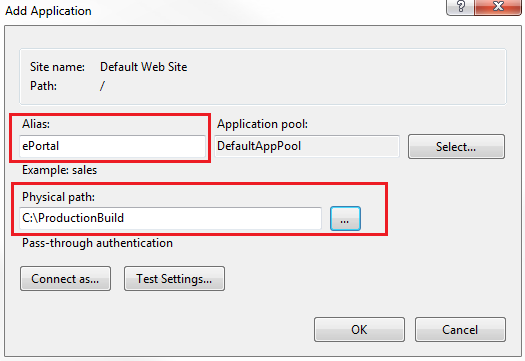
  • Exapand the root IIS node
  • Expand Sites
  • Right click on "Default Web Site" and select "Add Application" from the context menu
  • In the "Alias" textbox, type "ePortal"
  • Set the "Physical Path" to folder that contains the build files. In our case it is "ProductionBuild" folder in C:\ drive
deploy angular app to iis

At this point, if you launch the browser and navigate to http://localhost/ePortal/home, you will see the "home works" message as expected. When you click on the "Employees" tab it also works as expected.

angularjs 2 refresh page 404

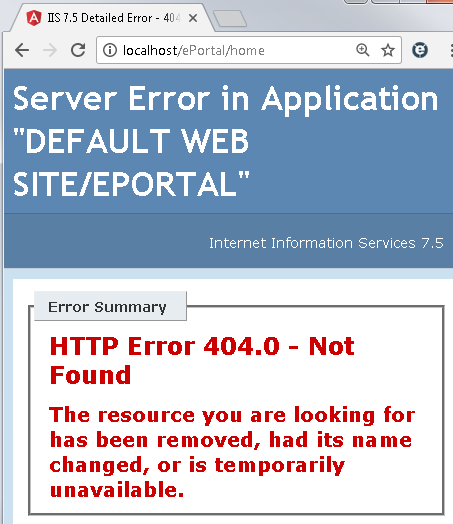
However, when you "Refresh" the page by pressing F5, you will see the following HTTP 404 error
angularjs 2 browser refresh not working

Step 6 :  To fix this Page Refresh issue in Angular, include the following URL rewrite rule in you web.config file. This web.config file should be in copied the "ProductionBuild" folder where we have the rest of the build files.

<?xml version="1.0" encoding="utf-8"?>
<configuration>
  <system.webServer>
    <rewrite>
      <rules>
        <rule name="AngularJS Routes" stopProcessing="true">
          <match url=".*" />
          <conditions logicalGrouping="MatchAll">
            <add input="{REQUEST_FILENAME}" matchType="IsFile" negate="true" />
            <add input="{REQUEST_FILENAME}" matchType="IsDirectory" negate="true" />
            <add input="{REQUEST_URI}" pattern="^/(api)" negate="true" />
          </conditions>
          <action type="Rewrite" url="/ePortal" />
        </rule>
      </rules>
    </rewrite>
  </system.webServer>
</configuration>

Please note : You may also point the IIS application directly to the "dist" folder in RoutingDemo project folder. The downside of this is every time you rebuild your application, the "dist" folder is deleted and recreated.  This means you will loose the web.config file and you have to create it again.

angular cli tutorial for beginners

Deploy angular app to IIS - Slides


Angular AOT vs JIT - Slides


Angular AOT vs JIT

Suggested Videos
Part 22 - Angular cli ng serve options | Text | Slides
Part 23 - Compile angular app | Text | Slides
Part 24 - Angular dev build vs prod build | Text | Slides

In this video we will discuss Ahead-of-Time compilation and Just-in-Time compilation in Angular.


In Angular we have 2 models of compilation
  • JIT - Just-in-Time Compilation : JIT compilation as the name implies, compiles the application Just-in-Time in the browser at runtime.
  • AOT - Ahead-of-Time Compilation : AOT compilation compiles the application at build time.

By default, with the development build we get JIT compilation. This is how it works. The application code along with the angular compiler is downloaded by the browser. At run-time, when a request is issued to the application, the JIT-compiler in the browser compiles the application code before it is executed. This means our user who made that first request has to wait for the application to compile first.

In our previous videos we have seen that, when we build our angular application, the following JavaScript bundles are generated.
  1. Inline
  2. Main
  3. Polyfills
  4. Styles
  5. Vendor
The vendor bundle contains the compiler along with the angular framework. The compiler code is roughly half of the Angular framework.

There is a tool called source-map-explorer that we can use to inspect the JavaScript bundles. This tool analyzes the source map generated with the bundle and draws a map of all dependencies.

To be able to use this tool we have to install it first. To install this tool, execute the following command
npm install source-map-explorer --save-dev

Once we have the tool installed, if you have not done the development build yet, do the development build using the following command.
ng build

Once the build is complete, you will have the JavaScript bundles along with the source map files. Now execute the following command. 
node_modules\.bin\source-map-explorer dist\vendor.bundle.js

The above command runs the source-map-explorer against the vendor bundle and we see the graph of it as shown below. Notice the angular compiler is around 45% percent of the bundle size. As this is development build and not optimised, notice the total size of the bundle is 2.19 MB.
angular aot vs jit

With AOT compilation the angular application is pre-compiled. So this means the browser loads executable code so it can render the application immediately, without waiting to compile the application first. 

This also mean with AOT, as the application is already pre-compiled, there is also no need for the browser to download the Angular compiler. As we already know, the compiler code is roughly half of the Angular framework, so omitting it dramatically reduces the application size.

By default, the production build is Ahead-of-Time compiled. So there is no need to bundle up the angular compiler code in the vendor bundle. This brings down the vendor bundle size by almost 50%. In addition it is also minified, uglified and tree-shaked to remove any code that we are not referencing in our application. So the bundler size is further reduced.

Now, execute the following command to generate a production build. Notice I have also turned on sourcemap option. Without the sourcemap we will not be able to use the source-map-explorer tool.
ng build --prod --sourcemap true

Once the production build is complete, execute the following command. Vendor bundle name in your production build may be slightly different. Change it accordingly and execute the command.
node_modules\.bin\source-map-explorer dist\vendor.7e385ef294695236ffd1.bundle.js

Here is the graph produced by the above command. Notice now, we do not have the compiler in the bundle. The bundle size is just 313 KB.
angular production build

The AOT compiler also detects and reports template binding errors at build time itself. Let us understand this with an example.

Include the following function HomeComponent class in home.component.ts file
getText(): string {
  return 'Hello Pragim';
}

In home.component.html include the following <div> element. Notice I have deliberately mis-spelled the getText() function name.
<div [innerText]='getTex()'>

Save changes, and execute the following command. This command does a development build in-memory. At the moment we are not using AOT, so we will not know about the template binding error that is introduced above. Notice at build time we do not see any errors.
ng serve

Now launch your default browser and navigate to http://localhost:4200. We see the "home works" message as expected. However, we do not see the message returned by getText() function. This is because we deliberately mis-spelled the getText() function name. We will see this error in the browser developer tools. So this proves that, with JIT compilation we will only come to know about the template binding errors at runtime.

With AOT compilation, template binding errors are detected and reported at build time itself as apposed to runtime. To prove this, execute the following command. Notice we are using --aot option for pre-compiling our in-memory build.
ng serve --aot

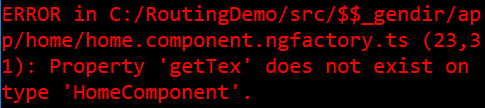
The build completes with the following error. So this proves that, with AOT compilation, template binding errors are detected and reported at build time itself as apposed to runtime
angular aot error

By default, the following 2 commands use JIT compilation 
ng build
ng serve

With either of these command we can use --aot option to turn on Ahead-of-Time compilation
ng build --aot
ng serve --aot

The production build uses AOT by default. If you want to turn off AOT for the production build, you can do so by setting --aot option to false as shown below.
ng build --prod --aot false

At this point, we cannot use source-map-explorer to check if the angular compiler is in the vendor bundle because we do not have sourcemap files. If you want to inspect the bundles make sure you also turn on sourcemaps.

angular cli tutorial for beginners

Angular dev build vs prod build

Suggested Videos
Part 20 - Angular CLI generate routing module | Text | Slides
Part 21 - Running angular app locally | Text | Slides
Part 22 - Angular cli ng serve options | Text | Slides

In this video we will discuss the differences between a development build and a production build in angular.


To generate a development build we can use either 
ng build 
OR
ng build --dev

To generate a production build we use 
ng build --prod


Here are some of the differences between a development build and a production build in angular.

Source Maps : Development build generate Source Maps where as production build does not. 

What are Source Maps
To improve the performance, the application's JavaScript and CSS files are combined and compressed. It is extremely difficult to debug those compressed files. A source map holds information about the original files and can be used to map the code within a compressed file back to it’s original position in a source file. So with the help of these source maps we can easily debug our applications even after the the files are compressed and combined.

By default, a development build produce source maps where as a production build does not. However, we can change this default behaviour by using --sourcemaps option along with the ng build command. It's alias is -sm.

The following command produces a development build without source maps as we have set -sm option to false
ng build --dev -sm false

On the other hand, if you want source maps along with your production build set -sm option to true as shown below.
ng build --prod -sm true

Extracts CSS : With the development build global styles are extracted to .js files where as with the production build they are extracted to .css files. To change this default behaviour use --extract-css option or it's alias -ec with the ng build command.

The following command produces a development build with global styles extracted to .css file(s) instead of .js ones.
ng build --dev -ec true

Minification & Uglification : A Prod Build is both minified and uglified, where as a Dev Build is not.

What is Minification 
The process of removing excess whitespace, comments, and optional tokens like curly brackets and semicolons is called Minification. 

What is Uglification
The process of transforming code to use short variable and function names is called uglification.

The minified and uglified version of the file is smaller in size than the full version, resulting in faster response times and lower bandwidth costs.

If you look at the bundles generated by the prod build, you will notice that they are minified and uglified. Notice, extra whitespaces, comments, and optional tokens like curly brackets and semicolons are removed. Also notice, the code is transformed by using short variable and function names. On the other hand, the bundles generated by the dev build, are not minified and uglified.

Tree Shaking : A Prod build is Tree Shaked, where as a Dev build is not.

What is Tree Shaking
Tree shaking is the process of removing any code that we are not actually using in our application from the final bundle. It's one of the most effective techniques to reduce the application size.

If you look at the bundles generated by the production build, they are significantly less in size compared with the bundles generated by the development build. This is beacause with the production build the code is tree shaked to remove dead code i.e the code that is not referenced by the application.

Ahead-of-Time (AOT) Compilation : With a production build we get AOT (Ahead-of-Time) compilation, i.e the Angular component templates are pre-compiled, where as with a development build they are not. We will discuss Ahead-of-Time compilation in detail in our next video.

The following table summarises the differences between a development build and a production build
Feature Development Build Production Build
Source Maps Yes No
Extracts CSS .js file .css file
Minifaction No Yes
Uglification No Yes
Tree Shaking No Yes
AOT No Yes

angular cli tutorial for beginners

Angular dev build vs prod build - Slides


Single Responsibility Principle

Suggested Videos
SOLID Design Principles Introduction | Text | Slides

In this video we will discuss
1. What is Single Responsibility
2. Single Responsibility Example


In our previous video we discussed S in the SOLID is acronym for Single Responsibility Principle (SRP)


As per the single responsibility principle
  • A class should have only one reason to change
  • Which means, every module or class should have responsibility over a single part of the functionality provided by the software, and that responsibility should be entirely encapsulated by the class.
  • Encapsulation is one of the fundamentals of OOP. At this moment, understanding more about encapsulation is out of scope of this session.
  • However, We strongly recommend you to refer to the C# tutorial playlist for more details on Object oriented principles.
Now you might be wondering what do we achieve with the Single Responsibility Principle or rather with the SOLID Design Principles.

Let's first understand the motivation behind the usage of SOLID Principles

In any enterprise software application development when we design and develop software systems, we need to account the below factors during the development cycle.
  • Maintainability : Maintainable systems are very important to the organisations.
  • Testability : Test driven development (TDD) is required when we design and develop large scale systems
  • Flexibility and Extensibility : Flexibility and extensibility is a very much desirable factor of enterprise applications.Hence we should design the application to make it flexible so that it can be adapt to work in different ways and extensible so that we can add new features easily. 
  • Parallel Development : It is one of the key features in the application development as it is not practical to have the entire development team working simultaneously on the same feature or component. 
  • Loose Coupling : We can address many of the requirements listed above by ensuring that our design results in an application that loosely couples many parts that makes up the application.
SOLID Principles and Design Patterns plays a key role in achieving all of the above points.

In Single Responsibility Principle
  • Each class and module should focus on a single task at a time
  • Everything in the class should be related to that single purpose
  • There can be many members in the class as long as they related to the single responsibility
  • With SRP, classes become smaller and cleaner
  • Code is less fragile 
Hence we can say that Single Responsibility Principle achieves the motivation points that we have just discussed.

Below code demonstrates how we can achieve Single Responsibility Principle

Code before Single Responsibility Segregation
using System;
using System.Collections.Generic;
using System.Linq;
using System.Text;
using System.Threading.Tasks;

namespace SRPDemo
{
    interface IUser
    {
        bool Login(string username, string password);
        bool Register(string username,
            string password, string email);
        void LogError(string error);
        bool SendEmail(string emailContent);
    }
}

Code after Single Responsibility Segregation
using System;
using System.Collections.Generic;
using System.Linq;
using System.Text;
using System.Threading.Tasks;

namespace SRPDemo
{
    interface IUser
    {
        bool Login(string username, string password);
        bool Register(string username,
            string password, string email);
    }
    interface ILogger
    {
        void LogError(string error);
    }

    interface IEmail
    {
        bool SendEmail(string emailContent);
    }
}

Now that we have segregated the single responsibility principle in these multiple interfaces the next step is to implement these interfaces with object creation mechanisms.  GOF has defined many design patterns on object creations based on the requirements.

Hence we strongly recommend you to refer to our design pattern tutorial for more details on creational design patterns.

I believe this session has given you a good idea on how we can implement Single responsibility principle.

In the next video we will discuss Interface Segregation Principle.

solid design principles c#

Single Responsibility Principle - Slides


Compile angular app

Suggested Videos
Part 20 - Angular CLI generate routing module | Text | Slides
Part 21 - Running angular app locally | Text | Slides
Part 22 - Angular cli ng serve options | Text | Slides

In this video we will discuss compiling angular applications. Along the way we will discuss producing builds both for development and production use. We will also discuss the differences between ng serve and ng build commands.


In Parts 21 and 22 of Angular CLI tutorial we discussed ng serve command. This command builds and serves the application from memory for faster development experience. ng serve command does not write the build files to the disk, so we cannot use it for deploying our application on a different server. For example, if we want to deploy our application to a test, staging or production server we cannot use ng serve command. For this we use a different command and that is ng build command.


When we execute ng build command it creates a folder with name "dist" and copies all the build files into that folder. Now the question that comes to our mind is, why is the folder named "dist". The folder is named "dist" because that is what is specified as the output directory for the build in the Angular CLI configuration file. Notice the "outDir" property is set to "dist".

By default the ng build command does a development build, not a production build. The development build is not optimised for production use. The development build is typically used for testing. With a development build it is easier to debug as the development build contains source map files.

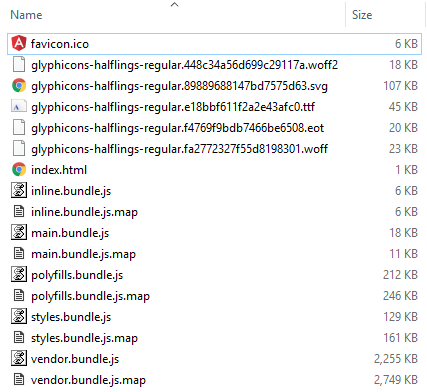
ng build command on my machine produced the following files in the "dist" folder
ng build development

As you can see in the "dist" folder we have 
1. The favicon
2. Glyphicon files
3. Our host page index.html
4. Bundle files and their corresponding source map files

Please note : Both the following commands are equivalent and does the same thing, i.e they produce a development build
ng build or ng build --dev

If you want to deploy the application to a server, copy the contents of the "dist" folder to a folder on the server. We will discuss deployment in detail in a later video.

The bundle files (inline, main, polyfills,styles, & vendor) generated by the development build are not optimised, meaning the bundles are not minified or treeshaked to remove the code that is not being used. A production build on the other hand will have all the performance optimisation techniques like Ahead-of-time (AOT) compilation, minification, uglification and treeshaking implemented. So the sizes of the bundles that the production build produces will be significantly less than the sizes of the bundles that a dev build produces. 

To do a production build use --prod option with the ng build command. ng build command with --prod option on my machine produced the following files in the "dist" folder. 
angular production build
  1. Notice the file sizes in the production build are significantly less than the file sizes in the development build. 
  2. With the production build, by default, we do not get the source map files because we usually do not need them on a production server. 
  3. Also notice, Production build extracts css from global styles into a css file instead of js ones.
In addition to these 3 differences between a dev build and a production build, there are several other differences as well. We will discuss them in detail in our next video.

ng serve vs ng build

ng serve
  • Compiles and serves the application from memory
  • Does not write the build files to the disk
  • Typically used to run the application on local development machine
  • Cannot be used for deploying the build to another server (Ex. Testing, Staging or Production server)
ng build
  • Compiles the application to the "dist" folder
  • Can be used to produce both development & production builds
  • Typically used to deploy the application on another server
angular cli tutorial for beginners