Support us .Net Basics C# SQL ASP.NET Aarvi MVC Slides C# Programs Subscribe Download

Fragment caching in asp.net - Part 122

Suggested Videos
Part 119 - Caching in ASP.NET
Part 120 - Caching multiple responses for a single webform
Part 121 - Controlling asp.net caching in code

In this video we will discuss about fragment caching. We discussed the basics of caching in Parts 119, 120, and 121. Please watch Parts 119120, and 121 before proceeding with this video.


Caching parts of webform is called as partial caching or fragment caching. In a web application development, there might be scenarios where most parts of the web page changes, but only a specific section of the page is static. Let's say that specific section also takes a long time to load. This is an ideal scenario, where fragment caching can be used.


We will be using tblProducts table to understand fragment caching. Please use the script below to create and populate table tblProducts
Create Table tblProducts
(
Id int primary key,
Name nvarchar(50),
ProductDescription nvarchar(100)
)

Insert into tblProducts Values (1, 'Laptop', 'Dell Latitude Laptops')
Insert into tblProducts Values (2, 'iPhone', 'Apple iPhone 4S')
Insert into tblProducts Values (3, 'Desktop', 'Dell high performance desktops')
Insert into tblProducts Values (4, 'Server', 'HP Servers')

Script to create stored procedure that gets all the products. To introduce artificial query processing time, we are using "waitfor delay".
Create Procedure spGetProducts
as
Begin
Waitfor Delay '00:00:05'
Select * from tblProducts
End

Steps to fragment cache a webform
1. Encapsulate that sepcific sections of the page that does not constantly change into a user control. 
2. Use the OutputCache directive on the user control to specify the cache settings.
3. Drag and drop the user control on the webform. 

Step 1: Encapsulate specific sections of the page that does not constantly change into a user control
Create an asp.net web application project. Add a user control to the project, with name "UCProductsControl.ascx". Copy and paste the following HTML in the ascx page of the user control.
<table style="border: 1px solid black">
    <tr>
        <td style="background-color: Gray; font-size:12pt">
            Products User Control
        </td>
    </tr>
    <tr>
        <td>
            <asp:GridView ID="GridView1" runat="server">
            </asp:GridView>
        </td>
    </tr>
    <tr>
        <td>
            <b>User Control Server Time:
                <asp:Label ID="Label1" runat="server" Text="Label"></asp:Label>
            </b>
        </td>
    </tr>
    <tr>
        <td>
            <b>User Control Client Time:
                <script type="text/javascript">
                    document.write(Date());
                </script>
            </b>
        </td>
    </tr>
</table>

Copy and paste the following code in the code-behind file of the usercontrol
protected void Page_Load(object sender, EventArgs e)
{
    Label1.Text = DateTime.Now.ToString();
            
    string CS = ConfigurationManager.ConnectionStrings["DBCS"].ConnectionString;
    SqlConnection con = new SqlConnection(CS);
    SqlDataAdapter da = new SqlDataAdapter("spGetProducts", con);
    da.SelectCommand.CommandType = CommandType.StoredProcedure;
    DataSet DS = new DataSet();
    da.Fill(DS);

    GridView1.DataSource = DS;
    GridView1.DataBind();
}

Please make sure to include the following using declarations as well
using System.Data;
using System.Configuration;
using System.Data.SqlClient;

Step 2: Use the OutputCache directive on the user control to specify the cache settings
<%@ OutputCache Duration="60" VaryByParam="None" %>

Step 3: Drag and drop the user control on the webform
Copy and paste the following HTML on the webform.
<div style="font-family: Arial">
    <table style="border: 1px solid black">
        <tr>
            <td>
                Page content that changes
            </td>
        </tr>
        <tr>
            <td>
                <b>Page Server Time:
                    <asp:Label ID="Label1" runat="server" Text="Label"></asp:Label>
                </b>
            </td>
        </tr>
        <tr>
            <td>
                <b>Page Client Time:
                    <script type="text/javascript">
                        document.write(Date());
                    </script>
                </b>
            </td>
        </tr>
        <tr>
            <td>
                <br /><br />
                <uc1:UCProductsControl ID="UCProductsControl1" runat="server" />    
            </td>
        </tr>
    </table>
</div>

Copy and paste the following code in the code-behind file of the webform.
protected void Page_Load(object sender, EventArgs e)
{
    Label1.Text = DateTime.Now.ToString();
}

Notice that, when you run the web application, the user control is cached. The server time of the user control is not changed on refreshing the page but the other times on the user control and page changes. This proves that, the user control is cached, but not the rest of the webform. Fragment caching is that easy.

"Shared" attribute of the "OutputCache" directive: 
"Shared" attribute can be used with "OutputCache" directive, to cache a single response from a user control for use on multiple Web forms. By default, ASP.NET caches a separate response for each Web form that uses a cached user control. Let us understand this with an example.

Add another webform with name WebForm2.aspx to the asp.net web application. Copy and paste the relevant HTML and code from WebForm1.aspx onto WebForm2.aspx.

Run the application and navigate to WebForm1.aspx. It takes around 5 seconds to load. Now navigate to WebForm2.aspx, and notice that WebForm2.aspx also takes 5 minutes. Since by default, ASP.NET caches a separate response for each Web form that uses a cached user control, both WebForm1.aspx and WebForm2.aspx, are taking 5 seconds. 

Now, let's set the Shared="true" for "OutputCache" directive on "UCProductsControl" user control. This should cache a single response from the user control for use on WebForm1.aspx and WebForm2.aspx.
<%@ OutputCache Duration="60" VaryByParam="None" Shared="true" %>

Run the application and navigate to WebForm1.aspx. It takes around 5 seconds to load. Now navigate to WebForm2.aspx, and notice that WebForm2.aspx loads instantly. Also notice that, the server time of the user control is same on both the webforms. This proves that both WebForm1.aspx and WebForm2.aspx are using the single cached response of the user control.

Controlling asp.net caching in code - Part 121

Suggested Videos
Part 118 - Difference between user controls and custom controls
Part 119 - Caching in ASP.NET
Part 120 - Caching multiple responses for a single webform

The basics of caching are discussed in Part 119, and caching multiple responses for a single webform are discussed in Part 120. In both of these videos, we discussed about  controlling caching within the Webform HTML using the OutputCache directive. In this video, we will discuss about controlling caching in code.


"Cache" property of the "Response" object, can be used to control caching in code. "Response.Cache" property returns the "HttpCachePolicy" object, which can be used in code just like the "OutputCache" directive is used in webform's HTML.

Copy and paste the following HTML on the webform.
<div style="font-family: Arial">
    Server Time : 
    <asp:Label ID="Label1" runat="server" Font-Bold="true" ></asp:Label>
    <br /><br />
    Client Time:
    <b>
        <script type="text/javascript">
            document.write(Date());
        </script>
    </b>
</div>


Copy and paste the following code in the code-behind file
1. SetExpires() method, is used to set the duration for which we want to cachs the webform. This is similar to the "Duration" attribute of the "OutputCache" directive.
2. Response.Cache.VaryByParams["None"] = true. This is similar to setting VaryByParam="None" for the "OutputCache" directive.
3. To control the location where items are cached, we can use "Location" attribute of the "OutputCache" directive, and SetCacheability() method in code.

protected void Page_Load(object sender, EventArgs e)
{
    Label1.Text = "This page is cached by the server @ " + DateTime.Now.ToString();
    Response.Cache.SetExpires(DateTime.Now.AddSeconds(60));
    Response.Cache.VaryByParams["None"] = true;
    Response.Cache.SetCacheability(HttpCacheability.Server);
}

Equivalent OutputCache settings 
<%@ OutputCache Duration="60" VaryByParam="None" Location="Server" %>

Caching multiple responses for a single webform - Part 120

Suggested Videos
Part 117 - Assigning an image to the composite custom control in visual studio tool box
Part 118 - Difference between user controls and custom controls
Part 119 - Caching in ASP.NET

In this video we will discuss about, caching multiple responses for a single webform. Please watch Part -119 from ASP.NET video tutorial, before proceeding with this video.


First create a stored procedure to get products from "tblProducts" table by product name. This procedure returns "ALL Products", if "All" is supplied as the product name, else, only the product whose name matches with the parameter "@ProductName" is returned.
Create Procedure spGetProductByName  
@ProductName nvarchar(50)  
as  
Begin  
 if(@ProductName = 'All')  
  Begin  
   Select Id, Name, Description  
   from tblProducts  
  End  
 Else  
  Begin  
   Select Id, Name, Description  
   from tblProducts  
   where Name = @ProductName  
  End  
End


WebForm1.aspx HTML:
<div style="font-family:Arial">
    Select Product: 
    <asp:DropDownList ID="DropDownList1" AutoPostBack="true" runat="server" 
        onselectedindexchanged="DropDownList1_SelectedIndexChanged">
        <asp:ListItem Text="All" Value="All"></asp:ListItem>
        <asp:ListItem Text="Laptops" Value="Laptops"></asp:ListItem>
        <asp:ListItem Text="iPhone" Value="iPhone"></asp:ListItem>
        <asp:ListItem Text="LCD TV" Value="LCD TV"></asp:ListItem>
        <asp:ListItem Text="Desktop" Value="Desktop"></asp:ListItem>
    </asp:DropDownList>
    <br />
    <br />
    <asp:GridView ID="GridView1" runat="server">
    </asp:GridView>
    <br />
    <br />
    Server Time: 
    <asp:Label ID="Label1" runat="server"></asp:Label>
    <br />
    <br />
    Client Time:
    <script type="text/javascript">
        document.write(Date());
    </script>
</div>

WebForm1.aspx.cs Code:
protected void Page_Load(object sender, EventArgs e)
{
    if (!IsPostBack)
    {
        GetProductByName("All");
    }
    Label1.Text = DateTime.Now.ToString();
}

protected void DropDownList1_SelectedIndexChanged(object sender, EventArgs e)
{
    GetProductByName(DropDownList1.SelectedValue);
}

private void GetProductByName(string ProductName)
{
    string CS = ConfigurationManager.ConnectionStrings["DBConnectionString"].ConnectionString;
    SqlConnection con = new SqlConnection(CS);
    SqlDataAdapter da = new SqlDataAdapter("spGetProductByName", con);
    da.SelectCommand.CommandType = CommandType.StoredProcedure;

    SqlParameter paramProductName = new SqlParameter();
    paramProductName.ParameterName = "@ProductName";
    paramProductName.Value = ProductName;
    da.SelectCommand.Parameters.Add(paramProductName);

    DataSet DS = new DataSet();
    da.Fill(DS);
    GridView1.DataSource = DS;
    GridView1.DataBind();
}

Include "@OutputCache" attribute with the followig settings. Notice that, since "VaryByParam" is set to "None", only one response of "WebForm1" is cached.
<%@ OutputCache Duration="60" VaryByParam="None"%>

Now change the "@OutputCache" attribute as shown below.
<%@ OutputCache Duration="60" VaryByParam="DropDownList1"%>

Since "VaryByParam" is set to "DropDownList1", up to 5 different responses will be cached for this Web form. One for each possible selection from DropDownList1 control.

Caching in asp.net - Part 119

Suggested Videos
Part 116 - Adding custom events to asp.net composite custom control
Part 117 - Assigning an image to the composite custom control in visual studio tool box
Part 118 - Difference between user controls and custom controls

Caching improves the performance and scalability of an application. Caching is the technique of storing frequently used data/pages in memory. Let us practically understand caching, with an example.


Create tblproducts table in sql server
Create Table tblProducts
(
[Id] int identity primary key,
[Name] nvarchar(50),
[Description] nvarchar(250)
)

Populate tblProducts with sample data
Insert into tblProducts values ('Laptops', 'Dell Laptops')
Insert into tblProducts values ('iPhone', 'iPhone 4S')
Insert into tblProducts values ('LCD TV', 'Samsung LCD TV')
Insert into tblProducts values ('Desktop', 'HP Desktop Computer')


Create "spGetProducts" stored procedure. In this procedure we are using WAITFOR DELAY, to block the execution of the stored procedure for 5 seconds. In real time, we may have large tables, where the query processing can take some time before the data is returned. Table "tblProducts" is a very small table, with only 4 rows. So the stored procedure "spGetProducts" would execute in a fraction of second. Just to simulate artifical query processing time of 5 seconds, we are using WAITFOR DELAY.
Create Procedure spGetProducts
As
Begin
Waitfor Delay '00:00:05'

Select Id, Name, Description
from tblProducts
End

Click here for SQL Server video tutorial that can help you, if you are new to sql server and need help creating tables, stored procedures and understanding sql server concepts.

Now, let us invoke the stored procedure in an asp.net web application, and display the "Products" data in a gridview control. Drag and drop a "gridview" control onto the web form. Copy and paste the following code in the code-behind file Page_Load() event.
string CS = ConfigurationManager.ConnectionStrings["DBCS"].ConnectionString;
SqlConnection con = new SqlConnection(CS);
SqlDataAdapter da = new SqlDataAdapter("spGetProducts", con);
da.SelectCommand.CommandType = CommandType.StoredProcedure;
DataSet DS = new DataSet();
da.Fill(DS);
GridView1.DataSource = DS;
GridView1.DataBind();

Also make sure you have the following "using" declarations
using System.Data;
using System.Data.SqlClient;
using System.Configuration;

We discussed about retrieving  data from database in ado.net tutorial. Click here to access ado.net tutorial.

At this point, if you run the application, the page takes about 5 seconds to load. This is because, when you request the webform, the web server has to process the web form events, execute the stored procedure, create objects, generate HTML and send that HTML to the client broswer. 

Now let us cache the webform. To cache a webform, use the @OutputCache page directive. The @OutputCache directive has 2 mandatory attributes
Duration - Specifies the time in seconds for which the webform should be cached
VaryByParam - Cache multiple responses of a single webform. For now set the value to "None". We will discuss about "VaryByParam" in a later video.

Webform with the following "OutputCache" directive is cached for 30 seconds.
<%@ OutputCache Duration="30" VaryByParam="None" %>

When any user requests this Web form for the first time, the web server will process the web form events, execute the stored procedure, create objects, generate HTML and send that HTML to the client browser, and retains a copy of the response in memory for the next 30 seconds. Any subsequent requests during that time receive the cached response. 

After the cache duration has expired, the next request for the Web form, has to process the web form events, execute the stored procedure, create objects, generate HTML, which is then cached for another 30 seconds. So this web form is processed by the server, once every 30 second, at the most.

Next Video: We will discuss about caching multiple responses for a single webform.

Difference between user controls and custom controls - Part 118

Suggested Videos
Part 115 - Solving the problems of asp.net composite custom calendar control
Part 116 - Adding custom events to asp.net composite custom control
Part 117 - Assigning an image to the composite custom control in visual studio tool box


Custom controls are compiled into their own assembly(.dll) where as user controls are not. User controls are compiled into the web application project's assembly that contain them.

Custom controls can be added to toolbox where as user controls cannot be added.

User controls are easier to create as they are similar to creating web pages. Custom controls are relatively complex, as there is no designer, and every thing has to be done in code.

A separate copy of user control is required in each application you want to use, where as a single copy of custom control can be used in multiple projects.


Please Note: When you drag and drop, a custom control, from the tool box onto a web form designer, the following 2 things can happen 
1. If the custom controls assembly is not installed in GAC, then custom controls assembly is copied into the "BIN" folder of the application. So, in this case, if you need to use the custom control in multiple applications, then a copy of the custom control's assembly, will be made into the "BIN" folder of every application.

2. If the custom controls assembly is installed in GAC, then custom controls assembly is directly referenced from the GAC. So, in this case, a single copy of custom control can be used in multiple projects.

To learn about installing assemblies into GAC, please watch the following parts from Dot Net Basics Video Tutorial
Part 3 - Strong Naming an Assembly
Part 4 - What is GAC? How and when to install an assembly into GAC

Click here to access Dot Net Basics Video Tutorial

Assigning an image to the composite custom control in visual studio tool box - Part 117

Suggested Videos
Part 114 - Adding properties to composite custom controls
Part 115 - Solving the problems of asp.net composite custom calendar control
Part 116 - Adding custom events to asp.net composite custom control

In this video we will discuss about assigning an image to the Composite Custom calendar control in visual studio tool box. Please watch Parts 112 to 116 from the asp.net video tutorial before proceeding with this video.


To associate an image to the composite custom calendar control use ToolboxBitmap attribute. This attribute is present in System.Drawing namespace. There are 2 ways we can use this attribute.

Using ToolboxBitmap attribute to associate, the image of an existing control: In this example, we are assigning the image of the asp.net calendar control to the composite custom calendar control. Please notice the usage of ToolboxBitmap attribute with "typeof" keyword.
[System.Drawing.ToolboxBitmap(typeof(Calendar))]
[ToolboxData("<{0}:CustomCalendar runat=server></{0}:CustomCalendar>")]
public class CustomCalendar : CompositeControl
{
    TextBox textBox;
    ImageButton imageButton;
    Calendar calendar;

    // Rest of the code.....
}


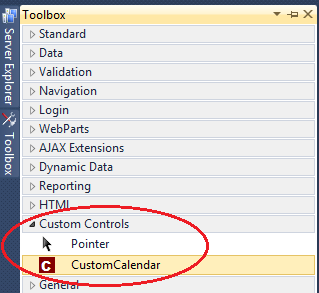
Rebuild the CustomControls project. Re-add the CustomCalendar control to visual studio tool box and notice that the asp.net calendar control icon is also used for the CustomCalendar control.
Using ToolboxBitmap attribute to associate, the image of an existing control

Using ToolboxBitmap attribute to associate a custom image: Create an image measuring 16X16 pixels in dimensions. I have used Microsoft paint to come up with the custom image that you can see below. 


Save this image to "C:\Images" folder or in a folder of your choice. I have given the name of "CustomCalendarIcon.bmp" to the image.

Finally use the ToolboxBitmap attribute and specify the path to the image.
[System.Drawing.ToolboxBitmap(@"C:\Images\CustomCalendarIcon.bmp")]
[ToolboxData("<{0}:CustomCalendar runat=server></{0}:CustomCalendar>")]
public class CustomCalendar : CompositeControl
{
    TextBox textBox;
    ImageButton imageButton;
    Calendar calendar;

    // Rest of the code.....
}

Rebuild the CustomControls project. Re-add the CustomCalendar control to visual studio tool box and notice that the custom image "CustomCalendarIcon.bmp" is used for the CustomCalendar control.
Using ToolboxBitmap attribute to associate a custom image

In our next video, we will discuss about the differences between user controls and custom controls.

Adding custom events to asp.net composite custom control - Part 116

Suggested Videos
Part 113 - Adding composite custom controls to visual studio tool box
Part 114 - Adding properties to composite custom controls
Part 115 - Solving the problems of asp.net composite custom calendar control

In this video we will discuss about adding custom event to the asp.net composite custom calendar control that we have been working with from Parts 112 to 115. Please watch Parts 112 to 115 from the asp.net video tutorial before proceeding with this video.


We have discussed about adding custom events to user controls in Parts 106 to 108. You can watch these videos from the asp.net video tutorial. Adding custom events to a composite control is similar to adding events to user controls.

There are 5 simple steps to add "DateSelected" custom event to composite custom calendar control
Step 1: Create "DateSelectedEventArgs" that will contain event data
public class DateSelectedEventArgs : EventArgs
{
    private DateTime _selectedDate;

    public DateSelectedEventArgs(DateTime selectedDate)
    {
        this._selectedDate = selectedDate;
    }

    public DateTime SelectedDate
    {
        get
        {
            return this._selectedDate;
        }
    }
}


Step 2: Create "DateSelectedEventHandler" delegate 
public delegate void DateSelectedEventHandler(object sender, DateSelectedEventArgs e);

Step 3: Create "DateSelected" event.
public event DateSelectedEventHandler DateSelected;

Step 4: Create a protected virtual method to raise the event.
protected virtual void OnDateSelection(DateSelectedEventArgs e)
{
    if (DateSelected != null)
    {
        DateSelected(this, e);
    }
}

Step 5: Finally raise the event, when the date selection in the calendar changes.
DateSelectedEventArgs dateSelectedEventData = new DateSelectedEventArgs(calendar.SelectedDate);
OnDateSelection(dateSelectedEventData);

Here is the complete code of the composite custom calendar control:
using System;
using System.Collections.Generic;
using System.ComponentModel;
using System.Linq;
using System.Text;
using System.Web;
using System.Web.UI;
using System.Web.UI.WebControls;

namespace CustomControls
{
    
    [ToolboxData("<{0}:CustomCalendar runat=server></{0}:CustomCalendar>")]
    public class CustomCalendar : CompositeControl
    {
        TextBox textBox;
        ImageButton imageButton;
        Calendar calendar;

        protected override void CreateChildControls()
        {
            Controls.Clear();

            textBox = new TextBox();
            textBox.ID = "dateTextBox";
            textBox.Width = Unit.Pixel(80);

            imageButton = new ImageButton();
            imageButton.ID = "calendarImageButton";
            imageButton.Click += new ImageClickEventHandler(imageButton_Click);

            calendar = new Calendar();
            calendar.ID = "calendarControl";
            calendar.SelectionChanged += new EventHandler(calendar_SelectionChanged);
            calendar.Visible = false;

            this.Controls.Add(textBox);
            this.Controls.Add(imageButton);
            this.Controls.Add(calendar);
        }

        void calendar_SelectionChanged(object sender, EventArgs e)
        {
            textBox.Text = calendar.SelectedDate.ToShortDateString();

            DateSelectedEventArgs dateSelectedEventData = new DateSelectedEventArgs(calendar.SelectedDate);
            OnDateSelection(dateSelectedEventData);

            calendar.Visible = false;
        }

        void imageButton_Click(object sender, ImageClickEventArgs e)
        {
            if (calendar.Visible)
            {
                calendar.Visible = false;
            }
            else
            {
                calendar.Visible = true;
                if (string.IsNullOrEmpty(textBox.Text))
                {
                    calendar.VisibleDate = DateTime.Today;
                }
                else
                {
                    DateTime output = DateTime.Today;
                    bool isDateTimeConverionSuccessful = DateTime.TryParse(textBox.Text, out output);
                    calendar.VisibleDate = output;
                }
            }
        }

        [Category("Appearance")]
        [Description("Sets the image icon for the calendar control")]
        public string ImageButtonImageUrl
        {
            get
            {
                EnsureChildControls();
                return imageButton.ImageUrl != null ? imageButton.ImageUrl : string.Empty;
            }
            set
            {
                EnsureChildControls();
                imageButton.ImageUrl = value;
            }
        }

        [Category("Appearance")]
        [Description("Gets or sets the selected date of custom calendar control")]
        public DateTime SelectedDate
        {
            get
            {
                EnsureChildControls();
                return string.IsNullOrEmpty(textBox.Text) ? DateTime.MinValue : Convert.ToDateTime(textBox.Text);
            }

            set
            {
                if (value != null)
                {
                    EnsureChildControls();
                    textBox.Text = value.ToShortDateString();
                }
                else
                {
                    EnsureChildControls();
                    textBox.Text = "";
                }
            }
        }

        protected override void RecreateChildControls()
        {
            EnsureChildControls();
        }

        protected override void Render(HtmlTextWriter writer)
        {
            AddAttributesToRender(writer);
            writer.AddAttribute(HtmlTextWriterAttribute.Cellpadding, "1");

            writer.RenderBeginTag(HtmlTextWriterTag.Table);

            writer.RenderBeginTag(HtmlTextWriterTag.Tr);

            writer.RenderBeginTag(HtmlTextWriterTag.Td);
            textBox.RenderControl(writer);
            writer.RenderEndTag();

            writer.RenderBeginTag(HtmlTextWriterTag.Td);
            imageButton.RenderControl(writer);
            writer.RenderEndTag();

            writer.RenderEndTag();
            writer.RenderEndTag();

            calendar.RenderControl(writer);
        }

        public event DateSelectedEventHandler DateSelected;

        protected virtual void OnDateSelection(DateSelectedEventArgs e)
        {
            if (DateSelected != null)
            {
                DateSelected(this, e);
            }
        }
    }

    public class DateSelectedEventArgs : EventArgs
    {
        private DateTime _selectedDate;

        public DateSelectedEventArgs(DateTime selectedDate)
        {
            this._selectedDate = selectedDate;
        }

        public DateTime SelectedDate
        {
            get
            {
                return this._selectedDate;
            }
        }
    }

    public delegate void DateSelectedEventHandler(object sender, DateSelectedEventArgs e);
}

Build the CustomControls project. In an asp.net web application add a reference to the CustomCalendar control. Drag and drop the CustomCalendar control on a webform. Right click on the control and select properties. In the properties window, click on the events icon. Notice that, the event "DateSelected" is displayed.
Adding custom events to composite custom controls

Double click on the "DateSelected" event. This should automatically generate an event handler method. Implement the event handler method as shown below.
protected void CustomCalendar1_DateSelected(object sender, CustomControls.DateSelectedEventArgs e)
{
    Response.Write(e.SelectedDate.ToShortDateString());
}

Please run the project, and test.

Next Video: Assigning an image, to the Custom Calendar in visual studio tool box