Support us .Net Basics C# SQL ASP.NET Aarvi MVC Slides C# Programs Subscribe Download

ASP.NET Web API enable HTTPS

Suggested Videos
Part 14 - Calling ASP.NET Web API service in a cross domain using jQuery ajax
Part 15 - Cross-origin resource sharing ASP.NET Web API
Part 16 - Enable SSL in Visual Studio Development Server

In this video we will discuss how to enable HTTPS for ASP.NET Web API service. After HTTPS is enabled, if a request is issued using HTTP we want it to be automatically redirected to HTTPS.

This is continuation to Part 16. Please watch Part 16 from ASP.NET Web API tutorial before proceeding.


Two simple steps to enable HTTPS for ASP.NET Web API service. 

Step 1 : Right click on the ASP.NET Web API project and add a class file. Name it RequireHttpsAttribute. Copy and paste the following code


using System;
using System.Net;
using System.Net.Http;
using System.Text;
using System.Web.Http.Controllers;
using System.Web.Http.Filters;

namespace EmployeeService
{
    public class RequireHttpsAttribute : AuthorizationFilterAttribute
    {
        public override void OnAuthorization(HttpActionContext actionContext)
        {
            if (actionContext.Request.RequestUri.Scheme != Uri.UriSchemeHttps)
            {
                actionContext.Response = actionContext.Request
                    .CreateResponse(HttpStatusCode.Found);
                actionContext.Response.Content = new StringContent
                    ("<p>Use https instead of http</p>", Encoding.UTF8, "text/html");

                UriBuilder uriBuilder = new UriBuilder(actionContext.Request.RequestUri);
                uriBuilder.Scheme = Uri.UriSchemeHttps;
                uriBuilder.Port = 44337;

                actionContext.Response.Headers.Location = uriBuilder.Uri;
            }
            else
            {
                base.OnAuthorization(actionContext);
            }
        }
    }
}

Step 2 : Include the following line of code in Register() method of WebApiConfig class in WebApiConfig.cs file in App_Start folder. This adds RequireHttpsAttribute as a filter to the filters collection. So for every request the code in this filter is executed. If the request is issued using HTTP, it will be automatically redirected to HTTPS.

config.Filters.Add(new RequireHttpsAttribute());

Please note : If you don't want to enable HTTPS for the entire application then don't add RequireHttpsAttribute to the filters collection on the config object in the register method. Simply decorate the controller class or the action method with RequireHttpsAttribute for which you want HTTPS to be enabled. For the rest of the controllers and action methods HTTPS will not be enabled.

ASP.NET Web API tutorial for beginners

ASP.NET Web API enable HTTPS


Enable SSL in Visual Studio Development Server

Suggested Videos
Part 13 - Call ASP.NET Web API from jQuery
Part 14 - Calling ASP.NET Web API service in a cross domain using jQuery ajax
Part 15 - Cross-origin resource sharing ASP.NET Web API

In this video we will discuss how to enable SSL in Visual Studio. In our next video, we will discuss how to automatically redirect to HTTPS from HTTP, if a request is made using HTTP to our ASP.NET Web API service.

To enable SSL in Visual Studio 2015
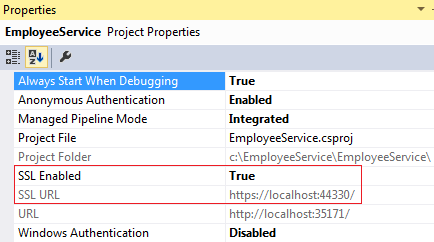
1. In the Solution Explorer click on EmployeeService Web API project and press F4 key on the keyboard. This launches Project Properties window.


2. In the Properties window, set SSL Enabled property to true. As soon as we do this Visual Studio sets SSL URL

enable ssl in visual studio 2015

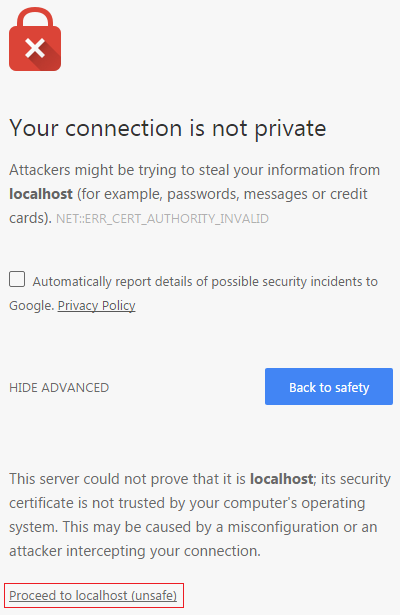
3. At this point, when you try to navigate to https://localhost:44330/api/employees in the browser, you will see the following browser security page. Make sure you click "Advanced" link to see "Proceed to localhost" link.

visual studio ssl localhost

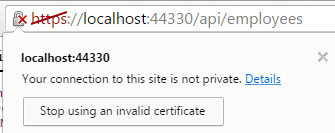
4. Click on "Proceed to localhost" link and you will see a invalid certificate message. Make sure to click on the lock symbol in the URL to see the invalid certificate message. The reason for this is that, the certificate that Visual Studio installed automatically is not trusted.

ssl certificate error chrome


To resolve this problem we have to place the certificate that visual studio has issued in the Trusted Root Certificates folder
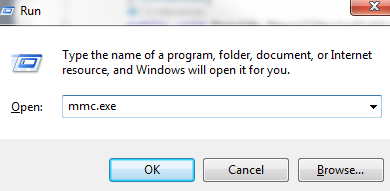
1. In the RUN window, type mmc.exe and click OK

visual studio trust certificate

2. On the window that appears, click "File" - "Add/Remove Snap-in"

3. From the "Available snap-ins" list select "Certificates" and click "Add"

4. On the next screen, select "Computer account" radio button

5. On the next screen, select "Local computer" radio button and click "Finish" and then "OK"

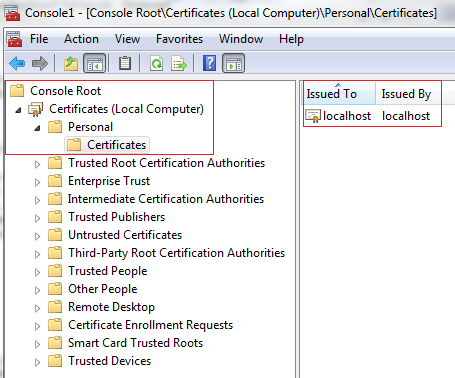
6. Expand Console Root - Certificates (Local Computer) - Personal - Certificates. In this folder you will find a certificate that is Issued To local and Issued By local.

windows personal certificate store location

7. Right click on the localhost certificate, and select "All Tasks" and then "Export"

8. Click "Next" on the subsequent screen

9. Select "DER encoded binary X.509 (.CER)" radio button, and then click Next

10. On the next screen, provide a name for the certificate that you are exporting and click "Next". I have placed certificate in my case at c:\Certificates\localhost

11. Click "Finish" on the next screen

12. Expand Console Root - Certificates (Local Computer) - Trusted Root Certification Authorities - Certificates

13. Right click on "Certificates", and select "All Tasks" and then "Import"

14. Click "Next" on the subsequent screen

15. Enter the complete path where you have exported the certificate and click "Next". In my case the certificate is at c:\Certificates\localhost.cer

16. On the next screen, select "Place all certificates in the following store" radio button and click "Next"

17. Finally click "Finish"

At this point closes all instances of the browser. Open a new browser instance and navigate to https://localhost:44330/api/employees. Notice you don't get any certificate error. At the moment we can access our web api service using both http and https.

In our next video we will discuss, how to automatically redirect to HTTPS from HTTP.


ASP.NET Web API tutorial for beginners

Enable SSL in Visual Studio Development Server


Cross-origin resource sharing ASP.NET Web API

Suggested Videos
Part 12 - FromBody and FromUri in Web API
Part 13 - Call ASP.NET Web API from jQuery
Part 14 - Calling ASP.NET Web API service in a cross domain using jQuery ajax

In this video we will discuss how to call an ASP.NET Web API service in a cross domain using jQuery ajax. In our previous video we discussed how to do this using JSONP. In this video we will discuss how to enable CORS (Cross Origin Resource Sharing) which allows cross domain ajax calls. CORS support is released with ASP.NET Web API 2.

This is continuation to Part 14. Please watch Part 14 from ASP.NET Web API tutorial before proceeding with this video.


Comment the following 2 lines of code in Register() method of WebApiConfig class in WebApiConfig.cs file in App_Start folder. We added these lines in our previous video to make ASP.NET Web API Service return JSONP formatted data
//var jsonpFormatter = new JsonpMediaTypeFormatter(config.Formatters.JsonFormatter);
//config.Formatters.Insert(0, jsonpFormatter);

To allow cross domain ajax calls by enabling CORS
Step 1 : Install Microsoft.AspNet.WebApi.Cors package. Execute the following command using NuGet Package Manager Console. Make sure to select "EmployeeService" project from "Default project" dropdown.
Install-Package Microsoft.AspNet.WebApi.Cors

install cors web api


Step 2 : Include the following 2 lines of code in Register() method of WebApiConfig class in WebApiConfig.cs file in App_Start folder

EnableCorsAttribute cors = new EnableCorsAttribute("*", "*", "*");
config.EnableCors();

Step 3 : In the ClientApplication, set the dataType option of the jQuery ajax function to json
dataType: 'json'

Parameters of EnableCorsAttribute
Parameter Description
origins Comma-separated list of origins that are allowed to access the resource. For example "http://www.pragimtech.com,http://www.mywebsite.com" will only allow ajax calls from these 2 websites. All the others will be blocked. Use "*" to allow all
headers Comma-separated list of headers that are supported by the resource. For example "accept,content-type,origin" will only allow these 3 headers. Use "*" to allow all. Use null or empty string to allow none
methods Comma-separated list of methods that are supported by the resource. For example "GET,POST" only allows Get and Post and blocks the rest of the methods. Use "*" to allow all. Use null or empty string to allow none

The following 2 lines of code in Register() method of WebApiConfig.cs file in App_Start folder, enables CORS globally for the entire application i.e for all controllers and action methods

EnableCorsAttribute cors = new EnableCorsAttribute("*""*""*");
config.EnableCors();

EnableCors attribute can be applied on a specific controller or controller method. 

If applied at a controller level then it is applicable for all methods in the controller. To apply it at the controller level

1. There is no need to create an instance of EnableCorsAttribute in Register() method of WebApiConfig.cs file. Call the EnableCors() method without any parameter values.

config.EnableCors();


2. Apply the  EnableCorsAttribute on the controller class
[EnableCorsAttribute("*", "*", "*")]
public class EmployeesController : ApiController
{
}

In the same manner, you can also apply it at a method level if you wish to do so.

To disable CORS for a specific action apply [DisableCors] on that specific action

When CORS is enabled, the browser sets the origin header of the request to the domain of the site making the request. The server sets Access-Control-Allow-Origin header in the response to either * or the origin that made the request. * indicates any site is allowed to make the request.

ASP.NET Web API tutorial for beginners

Cross-origin resource sharing ASP.NET Web API


Calling ASP.NET Web API service in a cross domain using jQuery ajax

Suggested Videos
Part 11 - ASP.NET Web API query string parameters
Part 12 - FromBody and FromUri in Web API
Part 13 - Call ASP.NET Web API from jQuery

In this video we will discuss, how to call an ASP.NET Web API service in a cross domain using jQuery ajax. This is continuation to Part 13, please watch Part 13 from ASP.NET Web API tutorial before proceeding.


What is same origin policy
Browsers allow a web page to make AJAX requests only with in the same domain. Browser security prevents a web page from making AJAX requests to another domain. This is called same origin policy.


The following 2 URLs have the same origin
http://localhost:1234/api/employees
http://localhost:1234/Employees.html

The following 2 URLs have different origins, because they have different port numbers (1234 v/s 5678)
http://localhost:1234/api/employees
http://localhost:5678/Employees.html

The following 2 URLs have different origins, because they have different domains (.com v/s .net)
http://pragimtech.com/api/employees
http://pragimtech.net/Employees.html

The following 2 URLs have different origins, because they have different schemes (http v/s https)
https://pragimtech.com/api/employees
http://pragimtech.net/Employees.html

To prove browsers does not allow cross domain ajax requests, let's add a new web forms project to EmployeeService solution. Name it ClientApplication. Add an HTML page. Name it HtmlPage1.html. Copy and paste the following HTML and jQuery code.

<!DOCTYPE html>
<html>
<head>
    <title></title>
    <meta charset="utf-8" />
    <script src="Scripts/jquery-1.10.2.js"></script>
    <script type="text/javascript">
        $(document).ready(function () {
            var ulEmployees = $('#ulEmployees');

            $('#btn').click(function () {
                $.ajax({
                    type: 'GET',
                    // Make sure to change the port number to
                    // where you have the employee service
                    // running on your local machine
                    url: 'http://localhost:23258/api/Employees',
                    dataType: 'json',
                    success: function (data) {
                        ulEmployees.empty();
                        $.each(data, function (index, val) {
                            var fullName = val.FirstName + ' ' + val.LastName;
                            ulEmployees.append('<li>' + fullName + '</li>')
                        });
                    }
                });
            });

            $('#btnClear').click(function () {
                ulEmployees.empty();
            });
        });
    </script>
</head>
<body>
    <input id="btn" type="button" value="Get All Employees" />
    <input id="btnClear" type="button" value="Clear" />
    <ul id="ulEmployees"></ul>
</body>
</html>

When you click "Get All Employees" button on "HtmlPage1.html" page, you get the following error. To see the error launch browser tools and click on the console tab.
XMLHttpRequest cannot load http://localhost:23258/api/Employees. No 'Access-Control-Allow-Origin' header is present on the requested resource. Origin 'http://localhost:6293' is therefore not allowed access.

On the other hand when you click "Get All Employees" button on "Employees.html" page that is present in the same project as the ASP.NET Web API Service, that employee data is displayed without any problem.

So this proves, browsers does not allow cross domain ajax requests. There are 2 ways to get around this problem
  • Using JSONP (JSON with Padding) 
  • Enabling CORS (Cross Origin Resource Sharing)
In this video let's use JSONP to overcome the browser cross-domain restriction. In our next video we will discuss enabling CORS. 

So what is JSONP and what does it do?
JSONP stands for JSON with Padding. All JSONP does is wraps the data in a function. So for example, if you have the following JSON object
{
    "FirstName" : "Mark",
    "LastName"  : "Hastings",
    "Gender"    : "Male",
}

JSONP will wrap the data in a function as shown below
CallbackFunction({
    "FirstName" : "Mark",
    "LastName"  : "Hastings",
    "Gender"    : "Male",
})

Browsers allow to consume JavaScript that is present in a different domain but not data. Since the data is wrapped in a JavaScript function, this can be consumed by a web page that is present in a different domain.

Steps to make ASP.NET Web API Service to return JSONP formatted data and consume it from a cross domain ajax request
Step 1 : To support JSONP format, execute the following command using NuGet Package Manager Console which installs WebApiContrib.Formatting.Jsonp package.
Install-Package WebApiContrib.Formatting.Jsonp

Step 2 : Include the following 2 lines of code in Register() method of WebApiConfig class in WebApiConfig.cs file in App_Start folder

var jsonpFormatter = new JsonpMediaTypeFormatter(config.Formatters.JsonFormatter);
config.Formatters.Insert(0, jsonpFormatter);

Step 3 : In the ClientApplication, set the dataType option of the jQuery ajax function to jsonp 
dataType: 'jsonp'

Testing the ASP.NET Web API Service using fiddler
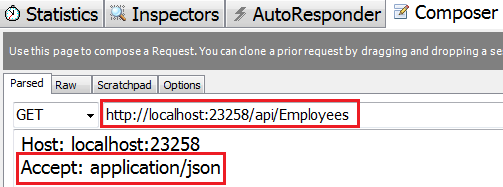
Notice in fiddler we have just specified the URL of the Web API service without Accept header and callback function in the URI
asp.net web api jsonp example

The above request results in the following error
A callback parameter was not provided in the request URI

If you want JSON data back, set Accept header to application/json and there is no need to specify the callback function in the URI. The request completes successfully.
asp.net web api crossdomain

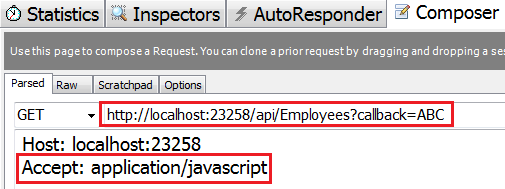
If you want JSONP formatted data back, set Accept header to application/javascript and specify a name for the callback function in the URI. We have set it to ABC.
asp.net web api ajax cross domain

ASP.NET Web API tutorial for beginners

Calling ASP.NET Web API service in a cross domain using jQuery ajax


Call ASP.NET Web API from jQuery

Suggested Videos
Part 10 - Custom method names in ASP.NET Web API
Part 11 - ASP.NET Web API query string parameters
Part 12 - FromBody and FromUri in Web API

In this video we will discuss how to call ASP.NET Web API Service using jQuery.


When "Get All Employees" button is clicked we want to retrieve all the employees and display their fullname in unordered list. When "Clear" button is clicked we want to clear the employees from the list.
Call ASP.NET Web API from jQuery


<!DOCTYPE html>
<html>
<head>
    <title></title>
    <meta charset="utf-8" />
    <script src="Scripts/jquery-1.10.2.js"></script>
    <script type="text/javascript">
        $(document).ready(function () {
            var ulEmployees = $('#ulEmployees');
            $('#btn').click(function () {
                $.ajax({
                    type: 'GET',
                    url: "api/employees/",
                    dataType: 'json',
                    success: function (data) {
                        ulEmployees.empty();
                        $.each(data, function (index, val) {
                            var fullName = val.FirstName + ' ' + val.LastName;
                            ulEmployees.append('<li>' + fullName + '</li>');
                        });
                    }
                });
            });
            $('#btnClear').click(function () {
                ulEmployees.empty();
            });
        });
    </script>
</head>
<body>
    <div>
        <input id="btn" type="button" value="Get All Employees" />
        <input id="btnClear" type="button" value="Clear" />
        <ul id="ulEmployees" />
    </div>
</body>
</html>

In our case both the client (i.e the HTML page that contains the ajax code) and the asp.net web api service are in the same project so it worked without any problem. If they are present in different projects then this wouldn't work.

In our next video we will discuss 
  • Why the AJAX call wouldn't work if the client and service are in different projects
  • How to make it work
ASP.NET Web API tutorial for beginners